Responsive Web Design Principles for Modern UX
Discover the core responsive web design principles for building websites that deliver a flawless user experience on any device. Learn how to master them.

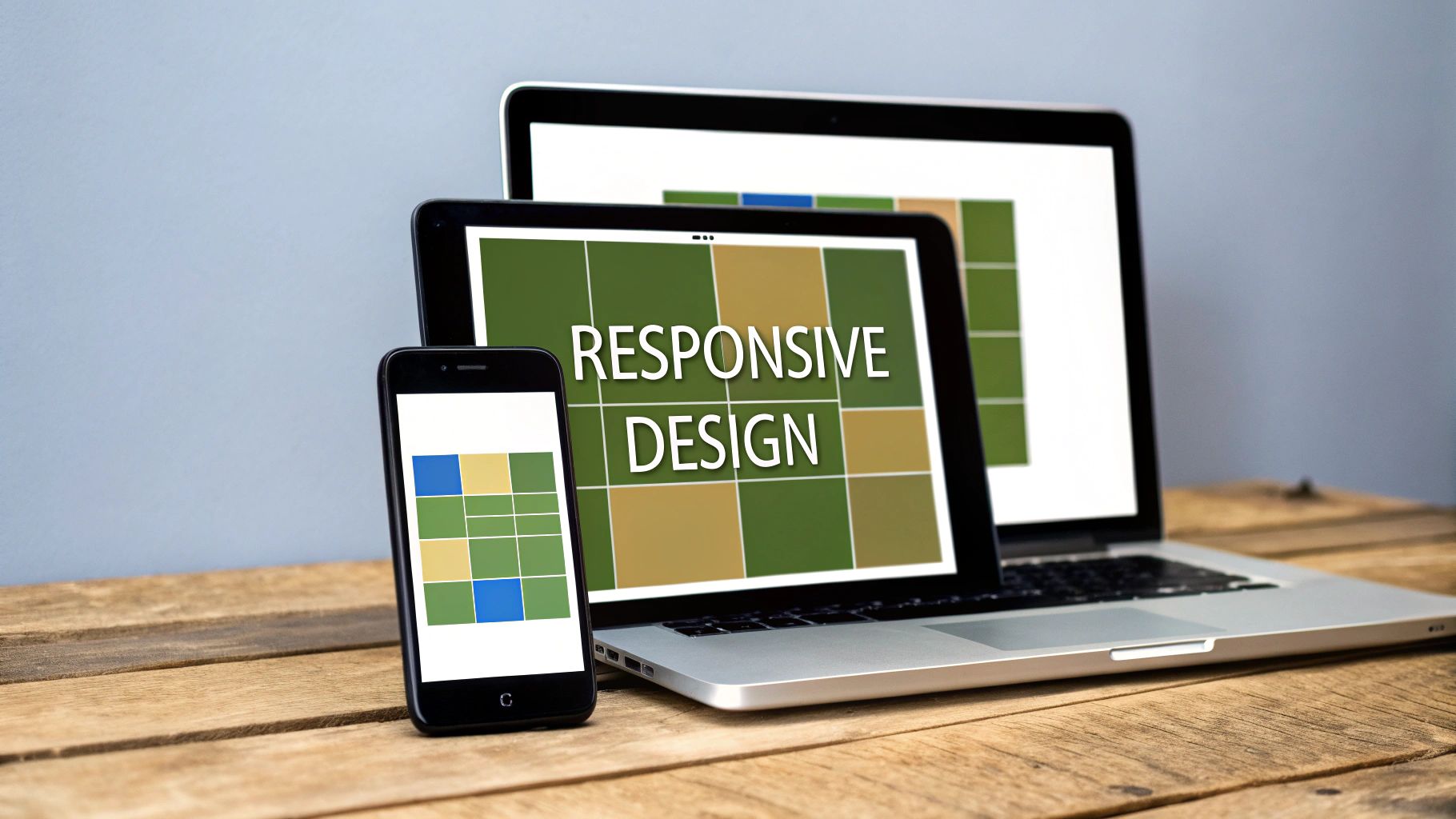
At its core, responsive web design is a set of principles—things like fluid grids and flexible media—that allow a single website to intelligently adapt to any screen size. The goal is to create a seamless experience for every user, whether they're on a massive desktop monitor or a tiny smartphone screen.
Why Responsive Design Is No Longer Optional
People today flip between phones, tablets, and laptops without giving it a second thought, and they expect your website to keep up.
Think of your website as a conversation with your audience. If that conversation breaks down or becomes hard to follow the moment they switch from their desktop to their phone, you've lost their trust. To a modern user, a site that doesn't work well on their device feels broken, which can seriously damage your brand and send potential customers running.
Learning and applying these principles is fundamental to surviving and growing online. It’s all about meeting people where they are, on whatever device they happen to be using at that moment.
The Reality of Multi-Device Users
The massive shift to mobile browsing is what really cemented responsive design as a non-negotiable standard. Just look at the numbers. In the United States, 91% of people have their phones within arm's reach around the clock, and about 90% of us use multiple screens to go online. This behavior means a static, desktop-only design is effectively ignoring a huge slice of its potential audience.
A responsive approach is proactive. It anticipates a user's context—are they on the couch with a tablet, or on the go with their phone?—and delivers an experience that just works, every single time.
When you fail to adapt, the consequences are real and measurable:
- Higher Bounce Rates: People won't stick around if a site is a pain to navigate on their device. They’ll just leave.
- Damaged Credibility: A clunky mobile site looks unprofessional and signals that you don't care about the user experience.
- Lost Revenue: If a customer can't easily make a purchase or fill out a form, they won't. It's that simple.
Ultimately, a responsive website is just good customer service. To see these principles in action, check out these inspiring responsive website examples that get it right. And if you're looking for tools to help, many modern platforms handle the heavy lifting for you; you can find out more in our guide to website builder reviews.
Understanding the Three Pillars of Responsive Design
Responsive web design isn’t a single piece of tech. Instead, it’s a smart combination of three core techniques working together. When these elements are in sync, you get a website that elegantly adapts to any screen, from a wide-screen monitor to a phone. Get one of them wrong, and the whole experience can fall apart.
Think of an old, fixed-width website like a photograph. It looks great at its intended size, but if you try to squeeze it into a smaller frame, parts of it get cut off. A responsive site, on the other hand, is more like a painting on an elastic canvas—it can stretch and shrink to fit any frame perfectly.
This magic comes from the interplay of three foundational responsive design principles. Let's unpack what they are and how they work.
The Foundation: Fluid Grids
The first and most important pillar is the fluid grid. Old-school web design used rigid, fixed units like pixels (px) to define layouts. A fluid grid throws that out the window and uses relative units instead, most often percentages (%). This simple shift means every element’s size is defined as a proportion of the space it’s in.
For instance, if you’re building a two-column layout, you might set each column to be 50% of the parent container's width. On a massive desktop screen, each column gets half of that big space. On a smaller tablet, they each still take up 50% of the new, smaller space, scaling down gracefully.
This is what stops that awful horizontal scrollbar from appearing on small screens. The layout just naturally flows to fill whatever space is available.
Making Content Adapt: Flexible Media
Next up is flexible media. This takes the same idea of relative sizing and applies it to your images, videos, and other embedded content. If you drop a huge, fixed-pixel image into a fluid grid, it’s going to completely break the layout on a small screen by spilling out of its container.
The solution is surprisingly simple. We use CSS to set the media’s maximum width to 100% of its container. This creates a powerful rule: the image can be its natural size, but it will never get wider than the column it’s in. It can only shrink. This image of a designer working on a grid really captures how all the pieces have to fit within their designated spots.

It’s a straightforward but incredibly effective trick that keeps your visuals looking sharp and contained, preventing them from distorting the layout on any device.
The Director: Media Queries
Finally, media queries are the brains of the operation. Think of them as the director, telling your layout how to behave at different sizes. These are simple filters in your CSS code that check the screen size of the device and apply specific style rules based on what they find.
To truly appreciate their role, let's break down the core components of responsive design in a simple table.
Core Pillars of Responsive Web Design Explained
| Principle | Core Concept | Primary Role |
|---|---|---|
| Fluid Grids | Uses relative units (like %) instead of fixed units (like px). | Creates a flexible layout foundation that scales proportionally. |
| Flexible Media | Sets max-width to 100% for images, videos, and iframes. | Ensures media content scales down to fit within its container. |
| Media Queries | Applies specific CSS rules based on device characteristics (like width). | Allows for significant layout changes at specific screen sizes. |
As the table shows, each principle handles a distinct but connected job to create a seamless user experience.
Media queries are what let you make those big, dramatic changes. You can write a rule that says, "if the screen is less than 768 pixels wide, change the layout from three columns to one." This is how you orchestrate major layout shifts, making a design truly responsive rather than just stretchy. They are the key to transforming a wide, horizontal desktop menu into a compact, touch-friendly "hamburger" menu on mobile.
While many content management systems handle this for you, understanding the mechanics is invaluable. For developers looking to build from scratch, seeing how to construct a CMS with Laravel can offer a much deeper appreciation for how these front-end principles are managed on the back end.
Adopting a Mobile-First Design Strategy

Putting all these design theories into practice means adopting a mobile-first philosophy. This isn't just about making a desktop site fit onto a smaller screen; it’s a complete shift in how we approach the design process.
Think of it like building a house. You don't start with the elaborate bay windows and fancy roof tiles. You start with a solid, non-negotiable foundation. Mobile-first design applies that same thinking to a website, forcing you to build out the core content and functionality for the smallest screens first.
This approach ensures the mobile experience is fast, focused, and whole. Only after that foundation is perfected do you layer on more complex features and layouts for larger screens. It's a method known as progressive enhancement—you build complexity outward, not inward.
Why Mobile-First Matters More Than Ever
The raw numbers tell a clear story. Today, over 63% of global web traffic comes from mobile devices, and that figure is only going up. For e-commerce sites, the trend is even more pronounced, with 77% of visits coming from smartphones. A good mobile experience isn't a bonus; it's directly tied to your bottom line.
A mobile-first mindset meets users where they already are. Instead of treating the majority of your audience as an afterthought, you're designing for them from day one. The benefits go far beyond just looking good on a phone.
By designing for the smallest screen first, you are forced to make tough decisions about content and features. This results in a leaner, faster, and more user-centric product on all devices.
This forced discipline is a good thing. It gets rid of the clutter and focuses the user on what they actually need to do, which, it turns out, is a win for desktop users, too.
The Practical Benefits of a Mobile-First Workflow
When you actually implement this strategy, you start to see tangible wins in performance, user satisfaction, and even how you rank on Google. It’s about aligning your entire design process with modern user habits and technical standards.
Here’s what that looks like in practice:
- Improved Performance: Mobile-first sites are naturally lighter and faster. You begin with only the essential assets and code. Heavier images and complex scripts are only loaded on devices that can easily handle them, which means quicker load times for everyone.
- Enhanced User Focus: This approach forces you to ask, "What is the single most important thing a user needs to do here?" By stripping away the non-essentials for the mobile view, you create a more intuitive, goal-oriented experience.
- Better SEO Outcomes: Google uses mobile-first indexing, which means it primarily looks at the mobile version of your site to determine its rankings. A truly optimized mobile experience is no longer a suggestion—it's a prerequisite for search visibility.
Building a site from the ground up might feel overwhelming, but this philosophy actually simplifies many decisions. Modern tools are often built with this workflow in mind. If you're exploring your options, our overview of choosing a website builder for blogs can help you find one that supports this approach.
How to Use Breakpoints for Seamless Transitions

If fluid grids and flexible media are the stretchy fabric of your design, breakpoints are the seams. They are the exact points where the layout needs a more significant adjustment to stay comfortable and functional for the user. Think of them less as rules for specific devices and more as smart reactions to the available screen space.
The old way of thinking was to design for "an iPhone" or "an iPad." That approach is incredibly fragile. New devices come out every year, making that strategy a constant, losing game of catch-up. Today, the much smarter approach is to let the content itself tell you where the breakpoints should go.
It’s a surprisingly hands-on process. You simply resize your browser window, making it wider and narrower. Watch your content closely. When a line of text gets uncomfortably long, or an image gallery starts to look jumbled, or a navigation menu becomes a cramped mess—that's your cue. The layout has "broken," and that’s the perfect spot to add a breakpoint.
Putting Breakpoints Into Practice
This content-first method creates designs that are far more durable and forward-thinking. Instead of worrying about an ever-growing list of screen sizes, you're building a system that gracefully adapts to any screen, no matter what gets released next year.
In the code, a breakpoint is created with a CSS media query. It's a conditional rule that tells the browser to apply a certain block of styles only when the viewport—the visible area of the screen—meets specific conditions, like being above or below a certain width.
A classic example is shifting a multi-column layout into a single column for smaller screens.
- Above 992px: You might have a layout with a main content area and a sidebar sitting next to each other.
- Below 992px: A media query kicks in, and the CSS rules instruct the sidebar to drop below the main content, forming one clean, scrollable column.
The goal isn't just to stop your layout from looking broken. It's about actively enhancing the user's experience within their current context. A well-placed breakpoint makes text easier to read and navigation a breeze.
Using a combination of these major and minor breakpoints ensures that your design looks and feels intentional at every possible screen width.
For anyone new to this, exploring a good website builder for small business is a fantastic way to see these principles in action. Many of these tools handle breakpoints visually, letting you adjust layouts without having to write the code yourself.
Balancing Performance and Accessibility
Getting a website to look good on different screens is a great start, but it’s only half the battle. A truly responsive site has to deliver on two other promises: it needs to be incredibly fast and accessible to absolutely everyone. These aren't just boxes to check off a list; they are deeply woven into the very fabric of responsive design.
Think about it. What’s the point of a beautiful mobile layout if it takes forever to load because it’s trying to download a massive, desktop-sized image? That’s a one-way ticket to a frustrated user and a bounced visit. Performance is a huge part of the user experience.
Optimizing Media for Every Device
This is where responsive images come into play. Instead of forcing every device to download one giant image file, we can give the browser a set of options using the srcset attribute in the HTML. It’s like a menu for images.
You provide several different sizes of the same image, and the browser is smart enough to pick the best one for the job based on the user's screen size and resolution. A phone gets a small, lightweight version, while a 4K desktop monitor gets the high-fidelity version it needs. It's just common sense—you wouldn't pack a winter parka for a trip to the beach. This simple technique dramatically cuts down on load times and makes for a much smoother mobile experience.
The market reflects this need for seamless performance. The demand for responsive web design services, valued at around $50 billion in 2025, is projected to climb by 15% each year. You can find more data on this trend over at datainsightsmarket.com.
Designing for Touch and Inclusivity
Just as important as speed is making sure the design works for all people. This means thinking beyond the mouse and considering how people actually interact with their devices, from finger taps to assistive technologies.
A responsive design that isn't accessible is fundamentally incomplete. The goal is to create an experience that works seamlessly for all users, including those who rely on assistive technologies.
We have to account for the shift from a precise mouse click to the much less exact tap of a finger. It’s why many of the platforms we covered in our guide to the best CMS for ecommerce bake accessibility into their core functionality.
Here are a few things that absolutely have to be right:
- Sufficient Tap Target Size: Buttons, links, and other interactive elements need to be big enough to tap easily without accidentally hitting something else.
- Keyboard Navigation: Not everyone uses a mouse or a touchscreen. For users with motor impairments, being able to navigate the entire site with a keyboard is essential.
- Screen Reader Compatibility: The site’s underlying code needs to be clean and semantic. This ensures that screen readers can make sense of the content and present it logically, no matter how the visual layout shifts across different breakpoints.
Common Responsive Design Mistakes to Avoid
Even with a solid grasp of responsive design theory, it's surprisingly easy to stumble into common traps. The real challenge isn't just knowing the principles; it's about spotting and sidestepping these frequent errors before they create a frustrating experience for your users.
One of the most common pitfalls is simply hiding content on mobile devices. When faced with a complex element, the temptation to apply a quick display: none; is strong. But this shortcut is built on a flawed assumption: that mobile users are fine with a stripped-down, lesser experience. They're not. This approach often leaves users missing key information, creating a disjointed and incomplete journey.
Instead of just making things disappear, the better question to ask is, "How can I present this differently?" Think about reflowing the content. A wide data table that breaks on a small screen could be beautifully reimagined as a series of cards or a simple list. A sprawling horizontal navigation bar can gracefully fold into a "hamburger" or accordion menu. The goal is to reformat, not remove.
Mismanaging Widths and Interactions
Another classic mistake is locking elements into fixed widths. When you set a container with something like width: 900px;, you're basically guaranteeing a horizontal scrollbar on any screen smaller than that. This is a cardinal sin in user experience. Nothing makes a site feel more broken than forcing someone to pan back and forth just to read a line of text.
The fix is to fully embrace fluidity.
- Switch to
max-width: This is your best friend. It lets an element shrink down gracefully on smaller screens but stops it from stretching to unreadable lengths on massive ones. - Think in relative units: Use percentages (%) for your main containers. This ensures they always adapt to the available space, creating a truly flexible layout.
Finally, a huge oversight is forgetting that a finger is not a mouse. We've all been there: jabbing at a tiny link on our phone, only to hit the one next to it by accident. Interfaces designed for a precise cursor simply don't work for touchscreens.
The core idea is to design for the input method you're targeting. For touch, that means making your targets large enough to be tapped easily. Apple's guidelines suggest a minimum of 44x44 pixels for any tappable element. It’s not just about looking good—it's about being genuinely usable.
Frequently Asked Questions
Once you get the hang of the core concepts, you start running into the real-world questions that come up on actual projects. Let's dig into some of the most common ones to clear up the confusion and connect the dots between theory and practice.
What Is the Difference Between Responsive and Adaptive Design?
This one trips people up all the time. The easiest way to think about it is that responsive design is like a liquid. You pour it into a container—any container—and it molds itself to fit the space perfectly. It’s one flexible layout that continuously adjusts using fluid grids and media queries.
Adaptive design, on the other hand, is more like a set of nesting dolls. You have a few distinct, pre-built layouts for specific screen sizes (say, one for phones, one for tablets, and one for desktops). When you visit the site, the server figures out what device you're using and sends you the right "doll."
While adaptive can sometimes feel faster since it only loads what's needed for that specific layout, responsive design is far more flexible. It’s future-proof because it can handle any new screen size without you having to go back and build another fixed layout.
How Does Responsive Design Impact SEO?
It has a massive, and overwhelmingly positive, impact on SEO. In fact, Google has been recommending responsive design for years. Why? Because having a single URL and the same HTML code for all devices makes their job of crawling and indexing your site incredibly straightforward.
A responsive site is a direct answer to Google's mobile-first indexing. Your mobile site isn't just a copy; it's considered the primary version for ranking. This also sends all the right signals to Google by improving user experience—think lower bounce rates and people sticking around longer.
Are CSS Frameworks Like Bootstrap Still Necessary?
Necessary? Not really. Incredibly useful? Absolutely, depending on the project. Modern CSS, with powerful tools like Flexbox and Grid, has given developers the power to build intricate, responsive layouts from scratch without needing a heavy framework. This approach gives you total control.
But frameworks like Bootstrap or Foundation haven't gone anywhere. They’re fantastic for getting projects off the ground quickly. You get a battle-tested grid system and a whole library of ready-to-go components like navigation bars and modals right out of the box. The decision usually boils down to the project's timeline, its complexity, and simple developer preference.