What CMS Does a Site Use? A Practical Guide
Trying to figure out what CMS does a site use? Uncover the tech behind any website with our guide to online detectors, source code checks, and browser tools.


Figuring out which CMS a website runs on isn't just a fun bit of technical sleuthing. It’s a crucial step in gathering strategic intelligence. For anyone in the digital space—developers, marketers, business owners—peeking behind the curtain at a site's technology stack gives you powerful insights that can sharpen your own strategy and hand you a real competitive advantage.
Why Identifying a Website's CMS Is a Smart Move
Before we get into the "how," let's talk about the "why." When you know the Content Management System behind a site you admire (or compete with), you get a clear window into its capabilities, potential budget, and overall digital approach. Think of it as digital reconnaissance that really pays off.
For developers and web agencies, this information is pure gold. If you're putting together a quote for a website redesign, knowing the client's current CMS immediately tells you a lot about the project's potential complexity. A site built on a modern platform like Webflow is a completely different beast to tackle than one running on a clunky, custom-built system from a decade ago.
Gaining a Competitive Edge
For marketers, finding out what CMS a site uses can reveal a competitor's agility. A rival using a flexible system like WordPress armed with sophisticated plugins can likely spin up new landing pages and launch complex campaigns much faster than someone stuck on a more rigid platform. Knowing this helps you benchmark your own team's capabilities and spot potential weaknesses to exploit.
By analyzing the technology stack of industry leaders, you can start to reverse-engineer their success. You might notice that the top ecommerce players in your niche gravitate towards Shopify for its powerful sales tools, or that leading B2B blogs are all-in on HubSpot for its seamless marketing integrations.
This kind of insight is invaluable for guiding your own platform decisions and helping you sidestep costly mistakes. A comprehensive guide to ecommerce website development often shows how these foundational technology choices directly impact a site's long-term success.
Informing Your Own Tech Choices
The CMS market is absolutely massive and growing at an incredible pace. Projections show the global CMS market is on track to hit $54 billion in revenue by 2025, with cloud-based systems driving much of that growth. This explosion underscores just how vital these platforms are for any modern business. You can find more on these trends and market statistics on Magecomp.
With so much diversity in the market, there's a perfect solution out there for just about every need. By seeing what systems other successful sites are built on, you can get inspired and build a solid shortlist for your own project.
You might discover that a traditional CMS is the right fit, or you may find that you need to explore more modern architectures. Our guide on headless CMS options, for example, can open your eyes to these more advanced, flexible systems. This initial detective work is the first, most important step toward building a powerful, effective, and scalable online presence.
Using Online Detectors for a Quick Answer
When you just need a fast, straightforward answer to "What CMS is that site using?", your best bet is an online detector. These are simple web-based tools built for one purpose: to scan a website and instantly tell you what technology is powering it.
They work by looking for digital fingerprints—specific code patterns, directory structures, and header information unique to platforms like WordPress, Shopify, or Drupal. You just pop in a URL, hit a button, and you get your answer. It's the perfect first step for a bit of quick reconnaissance, whether you're a marketer checking out a competitor or a developer getting a feel for a new project.
What These Tools Actually Look For
The best detectors go way beyond just naming the CMS. Many can pull back the curtain on the specific theme a site is using, what plugins are active, and sometimes even who's hosting it. That extra layer of detail is where the real value is.
For instance, knowing a competitor uses WordPress is one thing. But discovering they use a premium theme like Avada and a specific caching plugin gives you actionable intel on their web strategy. If you're specifically curious about the WordPress ecosystem, a dedicated WordPress theme detector can provide even more granular details.
This infographic lays out a few common reasons you might be asking this question in the first place, from a developer's perspective to a designer's.
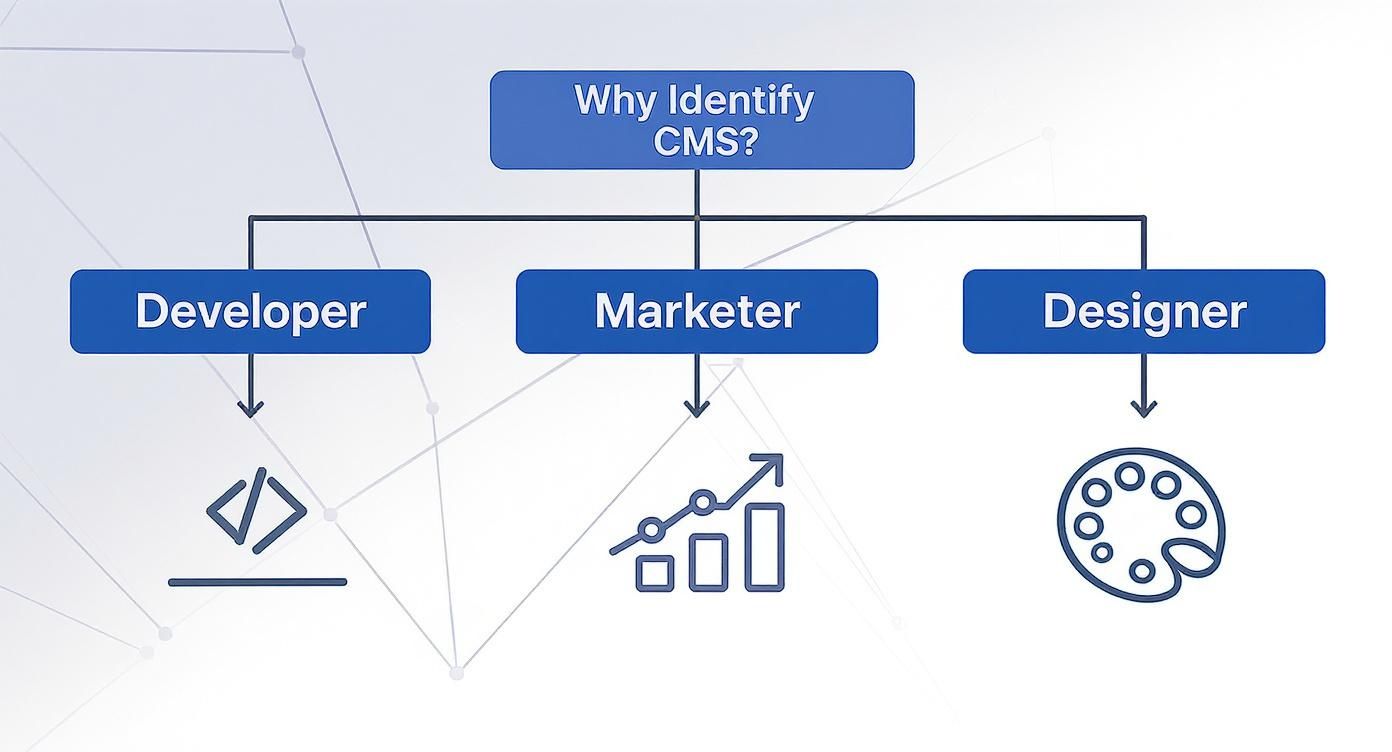
As you can see, your "why" really determines what information is most useful. A developer might be looking for clues about the codebase, while a marketer is probably more interested in content capabilities.
Top Tools for the Job
There are a ton of these tools out there, but a few have become industry go-to's for a reason. Tools like WhatCMS.org and BuiltWith are popular because they’re consistently reliable, especially when it comes to identifying the major players—think WordPress, Shopify, Joomla, and Drupal. They cross-reference multiple digital signatures to make sure the result is accurate.
To help you decide which tool fits your needs, here's a quick rundown of the most popular options and what they do best.
Comparison of Top Online CMS Detection Tools
| Tool Name | Best For | Key Features | Accuracy Level |
|---|---|---|---|
| WhatCMS.org | Quick and simple CMS identification. | Focuses solely on detecting the CMS, theme, and language. It's fast and minimalist. | High for popular platforms, but provides less peripheral data. |
| BuiltWith | A deep, comprehensive technology profile. | Identifies the CMS, analytics, widgets, frameworks, and advertising networks. | Very high, offering extensive details beyond just the CMS. |
| W3Techs | Market share data and trend analysis. | Shows technology usage statistics across the web, not just for a single site. | High, provides great context for a technology's popularity. |
Each of these tools offers a slightly different lens. WhatCMS.org is your sprinter—fast and to the point. BuiltWith is the marathon runner, giving you a deep-dive analysis of the entire tech stack. And W3Techs is the analyst, putting a site's technology choices into the context of broader web trends.
A quick word of caution: These tools are fantastic, but they aren't magic. A heavily customized website or one using a headless CMS architecture might throw them for a loop. If a tool comes back with an "unknown" result, that's your cue to roll up your sleeves and try one of the more manual methods.
At the end of the day, starting with an online detector is almost always the right move. It’s the most efficient way to get a baseline understanding of a site's foundation, giving you enough information to either act on or to guide a more hands-on investigation.
Digging into the Website's Source Code
Sometimes the automated tools just don't cut it. When a detector comes up empty or you just want to be absolutely sure, the best approach is to roll up your sleeves and look under the hood yourself. Inspecting a website’s source code is the most reliable way to figure out what’s powering it.
Think of it like being a digital detective. The HTML, CSS, and JavaScript files are loaded with fingerprints that point directly to the CMS. This manual check gives you the definitive proof that an automated tool might miss, especially if a site has heavy customizations or security features designed to hide its tech stack.
Getting to the source code is easy. In most desktop browsers, just right-click anywhere on the page and select "View Page Source." This will pop open a new tab filled with the site’s raw HTML—and that’s where the real investigation starts.
Spotting the WordPress Footprints
Given that WordPress powers over 43% of all websites, its digital tracks are usually the easiest to find. The biggest giveaway is the file path structure.
Once you have the source code open, use your browser's find function (Ctrl+F on Windows or Cmd+F on Mac) and just search for wp-content.
This directory is the heart of a WordPress site; it's where all themes, plugins, and uploads live. If you spot URLs in the code that follow this pattern, you’ve found your answer:
<link rel='stylesheet' href='https://example.com/wp-content/themes/some-theme/style.css'><script src='https://example.com/wp-content/plugins/some-plugin/script.js'></script>
Those paths are the smoking gun. Knowing the specific theme or plugins can be incredibly valuable, and you can dig even deeper with specialized tools for WordPress analysis to get more context.
Another classic WordPress clue is the meta generator tag. Search for
<meta name="generator" content="WordPress X.X">in the<head>section of the source code. Smart developers often remove this for security, but when it’s there, it’s a dead giveaway.
Identifying Other Major Platforms
Of course, the web isn't just WordPress. Every major CMS leaves its own unique trail of breadcrumbs in the code. Once you know what to look for, identifying them becomes second nature.
For e-commerce sites, Shopify is a giant. A quick search for cdn.shopify.com will almost always confirm it. Shopify hosts many core assets like scripts and stylesheets on its own content delivery network, leaving a very clear fingerprint.
Drupal, another powerful open-source platform, often gives itself away with its file structure. Search for paths that contain /sites/default/files/—that's a strong indicator. In a similar vein, Joomla sites frequently reference directories like /media/com_... for their components.
Here are a few other common patterns to search for:
- Wix: Look for script tags that reference
static.parastorage.comor meta tags like<meta name="generator" content="Wix.com Website Builder">. - Squarespace: You'll almost always find URLs pointing to
static1.squarespace.comfor assets like images, scripts, and stylesheets. - HubSpot: Any code related to HubSpot's tracking scripts, forms, or CTAs will typically contain the domain
js.hs-scripts.com.
By learning to spot these distinct patterns, you stop relying solely on third-party tools and start building the skill to diagnose a site's foundation with real confidence. This direct-from-the-source method is, without a doubt, the most accurate way to get the job done.
Use a Browser Extension for Instant Answers
If you find yourself constantly asking "what CMS is this site using?", then a browser extension is your new best friend. Seriously, it's a game-changer. While online tools are great for a one-off check and digging into the source code is the purest method, extensions give you the best of both worlds: power and convenience, right in your browser.
These little tools analyze the website you're on in real-time. With just one click on an icon in your toolbar, you get a full breakdown of the site’s tech stack. It's an incredibly efficient way for developers to size up the competition or for marketers to see what tools a potential client is already using.
Getting a Tech Profiler Set Up
Getting started is a breeze. Tools like Wappalyzer and BuiltWith are available on the marketplaces for Chrome, Firefox, and other major browsers. Installation is just a couple of clicks, and you're good to go.
Once you land on a website, the extension's icon will often update to show the logo of the main technology it finds, giving you an answer before you even click. Clicking that icon pulls up a detailed list of everything running under the hood.
Here’s a look at what the Wappalyzer extension shows you—a clean, organized list of a site's building blocks.

As you can see, the information is broken down into handy categories like CMS, Analytics, JavaScript Frameworks, and Advertising. This turns a simple question about the CMS into a full-blown intelligence report.
Reading Between the Lines
The real magic of these extensions is the context they provide. You don't just see "WordPress." You might see which plugins they're using, what analytics platform is tracking visitors, or which ad networks are running.
This extra detail is where the gold is. Knowing a site runs WordPress is a good start, but it's not exactly rare. As of 2025, WordPress powers a staggering 43.6% of all websites and has a 61.7% market share among sites with a known CMS.
An extension's true value is revealing the rest of the story. Seeing that a competitor uses WordPress alongside HubSpot and Optimizely tells you they are serious about content marketing and conversion rate optimization.
This same approach can help you deconstruct other parts of a website. For example, there are similar techniques for detecting website fonts using browser tools. It all works together to give you a complete picture of a site's digital strategy without ever having to leave the page.
Advanced Techniques for Hard-to-Identify Sites
So, the automated tools and a quick glance at the source code came up empty. Don't worry, this happens all the time. You've likely stumbled upon a site where the developers have intentionally covered their tracks or built something entirely from scratch.
When a site is well-hidden, it just means we need to dig a little deeper. The clues are almost always there if you know where to look. Some developers go to great lengths to obscure their CMS for security reasons, renaming common folders or using a headless architecture. For these tougher cases, we need to pull out the more advanced moves.
Checking Administrative URLs
One of the oldest tricks in the book is also one of the most effective: try to find the login page. Every CMS has a default administrative backend, and even if it’s locked down, the URL pattern itself is a dead giveaway.
It’s as simple as tacking common admin paths onto the end of the site's main domain. Give these a try:
- /wp-admin or /wp-login.php (Classic WordPress)
- /admin (A Shopify favorite)
- /user (The go-to for Drupal)
- /administrator (The standard for Joomla)
If one of these pops up with a branded login screen, you've struck gold. If you just get a 404 error, it doesn't mean you're wrong—it could just mean they're using a different CMS or, more likely, they’ve changed the default login URL for security.
This method is a high-reward, low-effort test. It takes seconds, and a direct hit gives you undeniable proof, cutting right through any code obfuscation.
Inspecting HTTP Headers
Every time your browser loads a website, the server sends back a package of information along with the page content. This info, known as HTTP headers, often contains tiny fingerprints of the software running on the server.
To see them, just open your browser's developer tools and click on the "Network" tab. Reload the page, click on the main document request, and look at the headers. A field like X-Powered-By can be revealing. For instance, seeing X-Powered-By: Express might suggest a Node.js backend, which often points toward a headless CMS setup.
Analyzing the Robots.txt File
Another goldmine of information is hiding in plain sight: the robots.txt file. This is a simple text file that tells search engine crawlers which parts of the site to stay away from. You can see it on almost any site by just adding /robots.txt to the end of the URL (like example.com/robots.txt).
Why is this useful? Because developers often list sensitive or administrative directories they don't want indexed.
Seeing a line like Disallow: /wp-admin/ is a smoking gun for WordPress. You might also spot patterns specific to other platforms. For example, knowing the typical file structure of different systems—like the tools used to build Hugo sites—can help you spot clues. The robots.txt file is essentially a public roadmap to the site’s backend, often revealing exactly what the developers tried to hide.
Unpacking Common Questions About CMS Detection
Even after you've run a few tools and poked around the source code, you'll sometimes hit a wall trying to figure out what CMS a site uses. Some websites are deliberately built to be discreet, while others use technology that doesn't fit the standard mold. Let's tackle some of the most common questions that come up during this process.
This is where we clear up the confusion around those tricky websites, talk about how much you can really trust the popular detector tools, and figure out what it means when you can't find a CMS at all.
Can a Website Completely Hide Its CMS?
Honestly, making a CMS completely invisible is incredibly difficult, though a site can definitely make it a challenge to identify. Developers can obscure the obvious clues by renaming default folders (like changing wp-content to something random), using security plugins that strip out meta generator tags, or adopting a headless architecture. These tactics effectively erase the most obvious digital footprints.
But for a determined analyst, there are almost always tells. A manual inspection of the source code, a close look at network requests, and digging into HTTP headers can usually uncover patterns unique to a specific platform. The only truly hard-to-identify system would be a fully custom-built one, simply because it doesn't have any public markers to begin with.
What if No CMS Is Detected?
When multiple tools and a good manual search come up empty, you're usually looking at one of three scenarios. Knowing what these are is crucial to understanding what the lack of evidence really means.
- Static Site Generator: The website might be built with something like Jekyll or Hugo. These tools generate plain HTML, CSS, and JavaScript files, so there's no active CMS running on the live server for a detector to find.
- Custom-Coded Application: It could be a bespoke site built from the ground up with a framework like React, Vue.js, or Angular, but without a recognizable CMS managing the content. The backend could be anything from Python to Ruby.
- Heavily Modified or Niche CMS: The site might be running on an obscure, heavily customized, or industry-specific platform that standard tools just aren't programmed to recognize. You see this a lot with large enterprise systems.
In these cases, your best bet is to shift focus and analyze the site's code structure and underlying framework. For example, developers using JavaScript frameworks are increasingly opting for specialized platforms. You can learn more about this trend and the rise of the Node.js CMS in our detailed guide.
Expert Takeaway: An "unknown" result from a CMS detector isn't a dead end. Think of it as a clue. It's an invitation to dig deeper into the site's architecture, which often tells you a more interesting story than a simple CMS name ever could.
How Accurate Are Online CMS Detectors?
For the big players like WordPress, Shopify, and Squarespace, online detectors are generally spot-on. They're built to look for the well-known, unambiguous signatures these platforms leave all over the place.
Their reliability starts to drop off, however, when you're dealing with less common platforms, heavily customized setups, or headless CMS architectures. My advice? Always use an online detector for a quick first look. But then, take a minute to verify its findings with a quick manual check of the source code or by using a browser extension. That two-step approach is how you get a result you can actually trust.