How to Improve Website Speed for Better Performance
Discover how to improve website speed with actionable strategies. Learn to optimize images, code, and hosting for a faster user experience and better SEO.

When you break it down, improving your website's speed really comes down to a few key areas. You're looking at optimizing your media (especially images), cleaning up your code, and using smart tech like caching and CDNs to deliver everything faster.
If you're looking for the quickest wins, compressing images and enabling caching will give you the most bang for your buck right out of the gate. These are almost always the heaviest parts of a page load.
Why a Fast Website Is Your Biggest Asset

A slow website isn't just a minor annoyance—it's actively costing you money and goodwill. Every fraction of a second a user has to wait adds friction. In an era of non-existent attention spans, that friction leads directly to abandoned carts, lost leads, and a tarnished brand image.
Figuring out how to improve website speed isn't some back-end technical chore. Honestly, it's one of the highest-impact investments you can make for your entire online presence.
Put yourself in your visitor's shoes for a moment. They click a link and expect something to happen instantly. Any delay, even a small one, plants a seed of doubt and frustration. It’s often just enough to make them hit the back button before they even see what you have to offer.
The High Cost of a Slow Website
The data doesn't lie: even milliseconds can make or break your key metrics. The table below paints a clear picture of how quickly users lose patience.
| Page Load Time | Increase in Bounce Rate | Potential Conversion Loss |
|---|---|---|
| 1 to 3 seconds | +32% | High |
| 1 to 5 seconds | +90% | Very High |
| 1 to 6 seconds | +106% | Critical |
| 1 to 10 seconds | +123% | Near-Total |
As you can see, the drop-off is brutal and immediate. A delay of just a few seconds sends bounce rates soaring and conversions into a nosedive, showing just how critical speed is for keeping users engaged.
The Financial Impact of Milliseconds
The link between your site's load time and your revenue is frighteningly direct.
- Conversions Evaporate: A clunky experience shatters a user's focus, making them far less likely to follow through with a purchase or sign-up.
- Bounce Rates Skyrocket: Visitors who don't get what they want right away will leave. This tells search engines your page probably isn't a great result for their query.
- SEO Rankings Suffer: Google is very open about this. Page speed and user experience signals, particularly Core Web Vitals, are direct ranking factors. A slow site is fighting an uphill battle for visibility.
Here's a real-world stat to drive it home: B2C websites that load in 1 second see an ecommerce conversion rate 2.5 times higher than sites that take 5 seconds to load. For mobile users, the penalty is even harsher—each additional second of delay can slash conversions by as much as 20%.
A fast website isn't just about good user experience; it's a critical business metric. Speed directly influences everything from customer loyalty and brand perception to your search engine visibility and, ultimately, your revenue.
Understanding Key Performance Metrics
To make meaningful improvements, you need to know what to measure. While there are dozens of metrics, a couple are absolutely essential for understanding what your users are actually experiencing.
Largest Contentful Paint (LCP) This metric tracks how long it takes for the biggest, most important piece of content to appear on the screen. It’s Google’s way of quantifying the moment a user feels like the page has finished loading.
Time to First Byte (TTFB) TTFB measures the delay before the browser receives the very first byte of data from your server. A high TTFB is a red flag for a server-side bottleneck, which could point to an issue with your hosting plan. The platform you build on matters, too; different options in these https://www.contenttoolkit.co/blog/website-builder-reviews have very different performance ceilings.
For those running an ecommerce store, digging into proven strategies to optimize Shopify speed can uncover platform-specific tweaks that make a massive difference.
Mastering Your Image and Media Strategy
Let's be honest: images and media files are usually the biggest culprits behind a slow-loading website. They are, by far, the heaviest assets on most pages, and getting your media strategy right is often the quickest path to a faster site.
This isn't just about running your images through a compression tool and calling it a day. A truly effective approach means being deliberate about file formats, using smart delivery techniques like lazy loading, and making sure every visitor gets a file size that makes sense for their device. Nailing this can give you the biggest performance boost for the least amount of technical headache.
Choosing the Right Image Format
The file format you save an image in directly affects its size and quality. If you get this wrong, you're either showing blurry pictures or making people download huge files they don't need. It’s a crucial first step.
- JPEG (or JPG): This is your go-to for most photographs. Its compression is fantastic at shrinking file sizes for complex images with lots of colors, all while keeping them looking sharp.
- PNG: Need a transparent background for a logo or an icon? PNG is your format. It uses lossless compression, which means perfect quality but often at the cost of a larger file size compared to a JPEG.
- WebP: This is the modern all-rounder from Google. It handles both high-quality photo compression and transparency, often creating files that are 25-34% smaller than a comparable JPEG without any noticeable quality loss. If you can use it, you probably should.
- SVG: For logos, icons, and any simple vector-based graphics, SVG is the clear winner. They are just code, which means they are tiny, resolution-independent, and will look perfectly crisp on any screen.
The Art of Compression
Compression is simply the act of making an image file smaller. But the how really matters. You have two fundamental choices, and knowing the difference helps you make smart trade-offs between file size and image clarity.
Lossless Compression This approach shrinks the file size without throwing away any of the original data. When the image is displayed, it’s a perfect pixel-for-pixel replica of the original. It’s great for technical drawings where detail is critical, but the size savings are usually pretty modest.
Lossy Compression Here's where the magic happens for most web use. This method intelligently removes bits of data from the image that the human eye is unlikely to notice. The result? A massive reduction in file size with little to no visible drop in quality. This is what you'll use for most of your website's images.
Your goal isn't to squeeze out every last byte. It's to find that "sweet spot" where the file is as small as possible while still looking great for its purpose on the page.
Implementing Lazy Loading
Think about it: why should a visitor’s browser download a dozen images at the bottom of a long page if they never even scroll that far? It's a waste of time and data.
Lazy loading fixes this. It tells the browser to only load images once they are about to enter the viewport. This makes the initial page load much faster and saves bandwidth—a huge win, especially for mobile users. Modern browsers make this incredibly easy with a single HTML attribute:
<img src="image.jpg" loading="lazy" alt="Descriptive text">
If you're using a platform like WordPress, there are plenty of excellent plugins that can handle this for you. Our guide to https://www.contenttoolkit.co/tools/wordpress can help you find one that fits your needs.
Serving Responsive Images
Sending a giant, 2000-pixel-wide image designed for a desktop monitor to someone on a small smartphone screen is a performance disaster. Responsive images solve this by letting the browser pick the best-sized image from a list you provide.
You do this using the srcset attribute right in your <img> tag.
This is conceptually similar to minifying code, where you strip out unnecessary characters to make files smaller and faster to download.
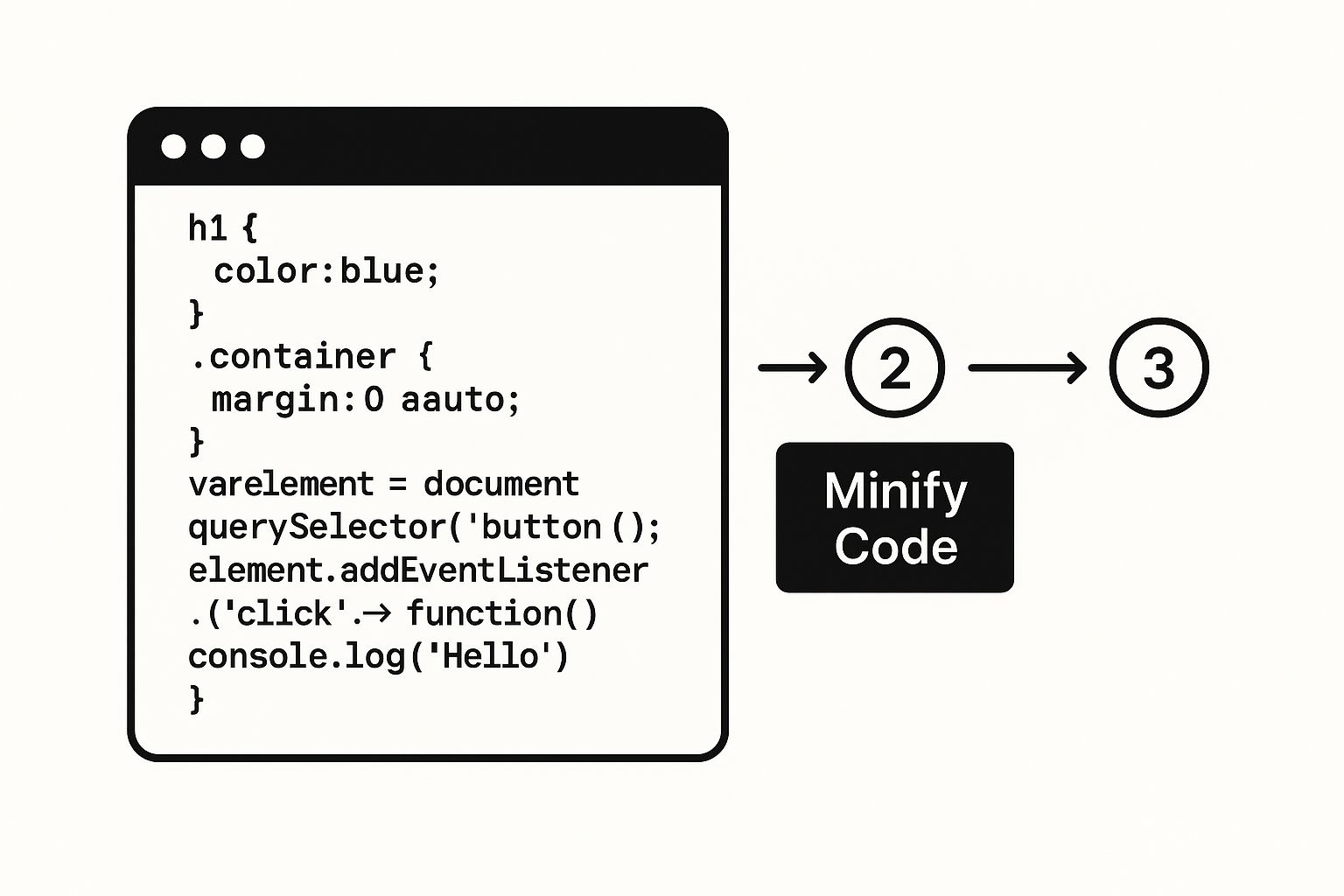
Just as the code in that image is made lighter by removing junk, srcset makes the page lighter for mobile users by serving them a smaller, more appropriate image file.
By giving the browser options, you ensure mobile visitors get a fast experience without compromising quality for those on a large desktop screen. And when dealing with exceptionally large media, understanding the tools behind efficient large file sharing services can also inform a smarter, more performant media strategy.
Using Caching and CDNs to Accelerate Your Site

Once your media is in good shape, the next big performance wins come from a powerful duo: caching and Content Delivery Networks (CDNs). Think of them as your website's personal express lane. They don't alter what your site delivers, but they fundamentally change how it gets to the user, making everything feel much snappier.
These aren't just tools for huge corporations anymore; they're essential for anyone serious about site speed. Caching cuts down the work your server has to do, while a CDN closes the physical distance between your content and your visitors. When they work together, they create a powerful defense against lag.
How Caching Creates a Faster Return Visit
At its heart, browser caching is a beautifully simple idea. The first time someone visits your site, their browser has to download everything—images, stylesheets (CSS), JavaScript files, the works. Caching tells the browser to hang onto those static files right on the visitor's own device.
When that person comes back, their browser can just pull the saved files from its local cache instead of asking your server for them all over again. The result? A dramatically faster load time. This is a game-changer because it slashes the number of HTTP requests and takes a significant load off your server, especially with repeat visitors.
If you're running a WordPress site, digging into the best WordPress caching plugins is a fantastic starting point. A good plugin can automate most of this process and give you an immediate speed boost.
Understanding Content Delivery Networks
A Content Delivery Network, or CDN, solves a completely different problem: geography. Your web server has a physical home. If it's located in New York, a visitor from Sydney is in for a long wait as the data travels halfway across the planet. That delay is called latency.
A CDN tackles this head-on by building a global network of "edge" servers. It makes copies of your site's static assets (like images, CSS, and JS files) and distributes them to these servers all over the world. Now, when that user from Sydney visits, the CDN is smart enough to serve the files from the closest server—maybe one right in Australia—instead of pulling them all the way from New York.
Shortening that physical distance has a massive impact on loading times for a global audience.
By serving assets from a location physically closer to the user, a CDN can drastically reduce round-trip time (RTT), which is a major factor in perceived page load speed. This can lead to performance improvements of 50% or more for international visitors.
Key Benefits of Using a CDN
Putting a CDN in place does more than just speed things up. It adds a layer of resilience and efficiency that strengthens your entire website infrastructure.
- Global Performance Boost: Your website loads quickly and consistently for everyone, no matter where they are. This is non-negotiable for any business with an international audience.
- Reduced Server Load: The CDN's network handles the delivery of all your heavy static files. This frees up your main server's resources to focus on more important tasks, like processing dynamic content.
- Enhanced Reliability and Uptime: If your main server has a problem and goes offline, many CDNs can keep serving the cached versions of your pages, keeping your site accessible.
- Improved Security: Top-tier CDNs often include built-in protection against common threats like DDoS attacks, absorbing and filtering malicious traffic before it ever reaches your server.
When you're picking a CDN, look at the size of their network (their "Points of Presence"), performance benchmarks, security features, and how easily it integrates with your setup. For developers using static site generators, pairing a tool like the one in our guide to Hugo with a CDN creates an incredibly fast and secure website, letting the CDN do almost all of the heavy lifting.
How to Streamline Your Website's Code
Once you’ve tackled image optimization, the next big performance win comes from cleaning up your website’s code. Think of it this way: bloated or messy code forces a visitor's browser to work much harder than it needs to, downloading and sorting through files filled with unnecessary clutter.
Every extra space, developer comment, or line break adds to the file size. On their own, they’re tiny, but they add up fast. A clean, lean codebase isn't just about good housekeeping; it's a direct path to a faster website. By minifying, combining, and strategically loading your code, you reduce the digital baggage a browser has to carry, allowing it to render your page much more quickly.
The Power of Minification
Let's start with minification. This is simply the process of stripping out all the non-essential characters from your code files without affecting how they work. We’re talking about whitespace, comments, and line breaks—all the things that make code easy for humans to read but are completely ignored by a browser.
Imagine your CSS file is a novel. To a person, the paragraphs and punctuation are essential for understanding the story. To a computer, only the core words matter. Minification is like stripping out all that "punctuation," leaving a condensed block of text that’s much quicker to download and process.
Here’s what that looks like in the real world with a simple CSS snippet.
Before Minification: /* Main Button Styles */ .main-button { background-color: #007bff; color: #ffffff; padding: 10px 20px; border-radius: 5px; }
After Minification: .main-button{background-color:#007bff;color:#ffffff;padding:10px 20px;border-radius:5px;} The "after" version does the exact same thing but is way smaller. When you apply this across your entire site's HTML, CSS, and JavaScript, the savings are huge—often cutting file sizes by 20-40%.
Reduce HTTP Requests by Combining Files
Every single file your website needs—each stylesheet, every JavaScript library—requires a separate trip, or HTTP request, to your server. Each one of these trips adds a little bit of overhead, and browsers can only make a few trips at once. A site with dozens of separate files creates a traffic jam, forcing the browser to wait in line.
The fix is to combine files, a process also known as concatenation. By merging multiple CSS files into a single master stylesheet and doing the same for your JavaScript, you slash the number of requests. Instead of making 20 separate trips, the browser can make just two, grabbing everything it needs much more efficiently.
Most modern content management systems have tools to handle this for you. If you're using a platform like Drupal, you’ll find built-in performance settings or plugins that can automate both minification and file combination. Our overview of Drupal tools is a great place to start looking.
“Reducing HTTP requests is a fundamental speed optimization technique. By combining files and minifying code, you directly address two primary causes of latency, leading to faster render times and a noticeably quicker user experience.”
Deferring Non-Critical Resources
Here's a hard truth: not all code is equally important. Some of your CSS and JavaScript is absolutely essential for rendering what a user sees the moment they land on your page. But a lot of it isn't. Think about the code for a pop-up modal, a fancy animation, or a social media widget buried in the footer. None of that is needed right away.
When these "non-critical" resources load first, they block the browser from drawing the visible part of the page, leaving your visitor staring at a blank screen. This is a classic performance killer called render-blocking.
The solution is to defer these non-critical scripts and styles. This tells the browser, "Go ahead and show the user the important stuff first, then come back for the rest." This single adjustment can make a massive difference in perceived performance and significantly improve your Largest Contentful Paint (LCP) score.
Knowing the benchmarks helps. Data from Google shows that the median LCP is 1.9 seconds on mobile in the United States, while average server response times hover around 0.8 seconds. Streamlining your code is one of the most effective ways to hit—or even beat—these crucial performance targets.
Choosing a Hosting Solution Built for Speed
Your website's hosting is its foundation. It doesn't matter how perfectly you optimize your images or minify your code; a slow, underpowered server will always be a bottleneck. It's like putting a lawnmower engine in a sports car—all the other tweaks in the world can't make up for a weak core.
Picking the right host isn't just a technical footnote; it's a fundamental business decision. I've seen countless sites struggling with slow load times, and often the most direct fix is simply moving away from a cheap, overloaded shared plan. If your Time to First Byte (TTFB) is consistently high, your hosting is almost always the prime suspect.
Decoding Your Hosting Options
Not all hosting is created equal, and the plan you choose directly impacts your site's performance ceiling. Understanding the key differences is the first step to figuring out if your current setup is holding you back.
- Shared Hosting: This is the budget option where your site lives on a server with dozens, sometimes hundreds, of other websites. You're all sharing the same CPU, RAM, and disk space. While it's cheap, it's also unpredictable. A traffic spike on a neighboring site—the "noisy neighbor" effect—can drag your performance down with it.
- Virtual Private Server (VPS) Hosting: This is a huge leap forward. A VPS still shares a physical server, but a specific slice of its resources is partitioned and guaranteed just for you. This isolation gives you far more consistent performance and control, making it a great sweet spot for sites that are getting serious traffic.
- Dedicated Hosting: This is the top of the line. You rent an entire physical server for your exclusive use. You get all the power, security, and control you could ask for, but it comes with a much higher price tag and more management overhead. This is really for large-scale, high-traffic websites with demanding needs.
Your hosting plan sets the performance ceiling for your entire website. Shared hosting is often the cause of slow server response times, and upgrading to a quality VPS is one of the quickest ways to see an immediate, sitewide speed improvement.
Key Features of a High-Performance Host
When you're shopping around for a better host, don't just compare prices. A few technical features are non-negotiable if speed is what you're after.
SSD Storage This one is simple: Solid-State Drives (SSDs) are worlds faster than old-school Hard Disk Drives (HDDs). A host using 100% SSD storage can access files and run database queries much more quickly. It's a small detail that adds up to a much snappier website.
Server Location The physical distance between your server and your visitors really does matter. If most of your customers are in North America, you don't want your server to be in Germany. Choosing a host with data centers close to your primary audience cuts down on latency—the time it takes for data to travel—and makes a real difference for your key users.
Modern Protocols Technology moves fast, and your host should keep up. Look for providers that support the latest tech built for speed, like HTTP/3 and the newest stable versions of PHP (if you're running on WordPress). These modern standards are far more efficient and can provide a nice performance bump on their own.
Ultimately, picking the right host means matching your investment to your performance goals. For those running an online store, it's even more critical to find a hosting environment that plays well with your platform. You can find some great comparisons and insights in this collection of e-commerce CMS solutions. Making an informed switch can be the single most effective change you make to speed up your site.
Common Questions About Website Speed
When you start digging into website speed optimization, a few key questions always seem to pop up. It's one thing to understand the concepts, but it's another to know exactly where to start and what to aim for.
Let's cut through the noise and answer the most common questions I hear from people trying to get their sites up to speed.
What Is a Good Page Load Time?
This is the big one, and the answer isn't as simple as a single number, but we have some excellent benchmarks.
Your primary target should be a full page load in under three seconds. In today's world, that’s the threshold where user patience starts to drop off a cliff. If you’re running an e-commerce store, this is non-negotiable. I've seen firsthand how even a one-second delay can tank conversion rates.
For a more technical measure, look at Google’s Core Web Vitals. They recommend a Largest Contentful Paint (LCP) of under 2.5 seconds. LCP is a fancy way of saying "how long it takes for the most important stuff on the screen to appear." It’s a great way to measure the user's perceived load time.
Ultimately, context is everything. Check out your direct competitors. If their sites are zipping along at two seconds, your four-second load time isn't just slow—it's a competitive liability.
How Can I Test My Website Speed Accurately?
Relying on a single test from one tool can give you a skewed picture. The best approach is to use a few different tools, as each one gives you a unique piece of the puzzle.
- Google PageSpeed Insights: This should always be your starting point. It grades your site directly against the Core Web Vitals and gives you separate, crucial reports for both mobile and desktop users. The recommendations are clear, actionable, and sorted by how much impact they'll have.
- GTmetrix: Where GTmetrix really shines is its detailed waterfall chart. This visual breakdown shows you every single file your page has to load, one by one. It's the best way to spot the exact culprits, whether it’s a massive hero image or a third-party script that’s dragging everything down.
- WebPageTest: If you have a global audience, this tool is essential. It lets you test from different locations, on different browsers, and even on slower connection speeds. It’s the closest you can get to simulating how real people all over the world are actually experiencing your site.
A pro tip: Never trust a single test. Run your checks multiple times throughout the day to get an average. A one-off result can easily be thrown off by a temporary server hiccup or network congestion.
What Is the First Thing I Should Fix for a Faster Site?
Looking for the biggest bang for your buck? Go after your images. Nine times out of ten, the primary cause of a slow website is unoptimized, bloated media files. Compressing your existing images and setting up an automated process for new uploads is, without a doubt, the most effective first step you can take.
Once your images are sorted, the next low-hanging fruit is enabling browser caching. Caching tells a visitor's browser to save static files (like your logo, CSS, and JavaScript) locally. When they return, the site doesn't have to re-download all those assets, making subsequent page loads feel almost instant. These two fixes alone—image optimization and caching—will deliver a massive performance boost before you ever have to touch a line of code.
And make no mistake, this stuff matters. Businesses lose an estimated $2.6 billion annually from slow websites. User expectations are sky-high; 83% of people expect a site to load in three seconds or less. For mobile users, the data is even more stark: as load time goes from 1 to 7 seconds, the probability of a visitor bouncing skyrockets by 113%. You can discover more website statistics and trends that really drive home the high cost of a slow site.