
Build Website with CMS: Easy Step-by-Step Guide
Learn how to build a website with CMS easily. Our guide covers selecting platforms, setup, design, and content to create a powerful website.

So, you've decided to build your website using a Content Management System (CMS). Smart move. It's the modern way to get a powerful, professional site up and running without needing a computer science degree. The process boils down to a few key stages: picking the right CMS, getting it installed, choosing a design (or theme), making it your own, and then, of course, creating your actual content.
Choosing the Right CMS for Your Project
The very first decision you make—which CMS to use—is by far the most important. This isn't just about picking a name you've heard before; this choice will echo through every part of your website's life. It influences everything from how fast your pages load to how easily you can add a new feature down the line.
Let's be honest, getting this wrong upfront can lead to some serious headaches and expensive migrations later. The goal is to match the platform to your specific needs, your technical comfort level, and your vision for the future.
Match the Platform to Your Purpose
Think about what you're actually building. An online store? A creative portfolio? A company blog? The answer dramatically narrows your options.
If you're launching an e-commerce site, the classic showdown is between an all-in-one platform like Shopify and a more flexible, self-hosted option like WordPress.org paired with its WooCommerce plugin. Shopify is fantastic for its sheer simplicity; it handles payments, security, and hosting so you can focus on selling. On the other hand, WooCommerce gives you complete creative freedom but puts you in the driver's seat for managing your hosting and security.
For a blog, portfolio, or a standard business website, the choice is often between hosted builders like Wix or Squarespace and a self-hosted CMS like WordPress. The hosted builders are incredibly intuitive, with slick drag-and-drop interfaces. But that ease of use comes at the cost of control. A self-hosted system gives you total ownership of your digital turf, which is a massive plus if you're planning for serious growth.
The big question you need to ask yourself is this: Do I want a service that handles everything for me, or do I want total control to build whatever I can imagine? Your answer points you to the right path.
Comparing Top CMS Platforms for Different Needs
To make this decision easier, I've put together a table that breaks down the most popular options. It compares their strengths, ideal use cases, and what you can expect in terms of cost and technical demands. This should help you see at a glance which platform aligns best with your project.
| CMS Platform | Ideal For | Key Strengths | Pricing Model | Technical Skill Required |
|---|---|---|---|---|
| WordPress | Blogs, business sites, complex projects | Unmatched flexibility, massive plugin ecosystem | Free (but requires paid hosting & themes) | Low to Medium |
| Shopify | E-commerce, from small shops to large stores | All-in-one, easy to use, excellent support | Monthly subscription + transaction fees | Low |
| Wix | Portfolios, small business sites, beginners | Intuitive drag-and-drop builder, templates | Freemium with tiered monthly plans | Very Low |
| Squarespace | Creatives, designers, visually-driven sites | Stunning design templates, great for aesthetics | Monthly or annual subscription | Very Low |
| Joomla | Complex portals, community sites, multilingual | Powerful for custom development, access control | Free (but requires paid hosting & templates) | Medium to High |
This comparison makes it clear that there's no single "best" CMS—only the best one for your specific situation.
Key Factors to Consider
Before you pull the trigger, be realistic about these three things:
- Technical Skill: How tech-savvy are you, really? Hosted builders are nearly foolproof. Self-hosted options like WordPress will require you to learn about hosting, perform updates, and troubleshoot the occasional plugin conflict.
- Budget: Don't just look at the upfront cost. Hosted platforms have a clear monthly fee, which is great for budgeting. Self-hosted solutions might seem cheaper initially, but costs for good hosting, premium themes, and essential plugins can add up quickly.
- Scalability: Think five years ahead. Where do you want this website to be? A simple portfolio might never need to change, but a business that plans to add an online store or a membership portal needs a platform that can grow with it.
This infographic breaks down the cost and skill trade-offs for two of the most popular e-commerce solutions.
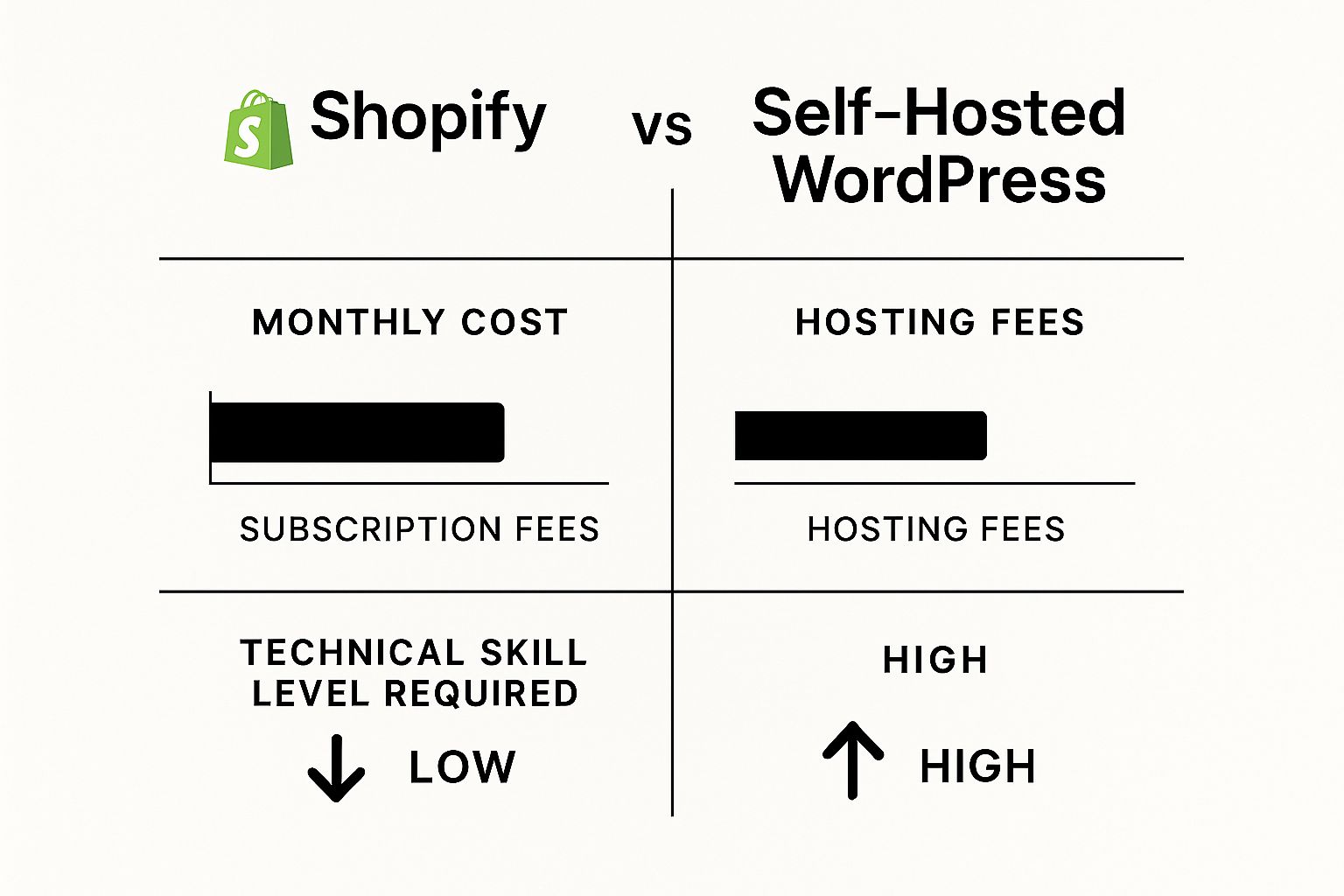
As you can see, Shopify's higher subscription fee is essentially paying for convenience and peace of mind. WordPress's lower initial cost comes with the expectation that you'll be more hands-on with the technical side of things.
The move towards using a CMS isn't just a niche trend; it's the standard. As of 2025, nearly 69% of all websites are built on a CMS platform, which translates to over 80 million live sites. People are overwhelmingly choosing these powerful tools over coding from scratch.
For a more granular look at how the different platforms compare on features, performance, and more, you should check out our detailed guide on the different CMS systems compared. It's a great resource to help finalize your decision.
You've picked your CMS. Now comes the real work: getting it set up and configured correctly. This isn't just about flipping a switch; it's about laying a solid foundation for your entire website. Getting these first steps right will save you a world of hurt down the road and give your site a performance edge from day one.
The path forward looks a little different depending on whether you've chosen a self-hosted or a hosted platform.
For a self-hosted CMS like WordPress, your first order of business is picking a reliable web host. This is the plot of land on the internet where your website files will live.
Thankfully, the days of complex manual installations are mostly behind us. Most modern hosting providers offer a "one-click install" for popular platforms. This handy feature takes care of the database setup and file installation automatically, getting the core software running in just a few minutes.
You'll typically find this option right in your hosting dashboard, making it incredibly simple to get started.
This kind of interface is designed to remove the technical hurdles, letting you manage domains and install applications without needing to be a developer.
If you went with a hosted solution like Shopify or Wix, the process is much more guided. These platforms typically walk you through an onboarding wizard, asking for basic information about your business and helping you connect your custom domain name right away.
Key Configurations for Self-Hosted Platforms
Once WordPress (or another self-hosted CMS) is installed, resist the urge to jump straight into designing your site. There are a few mission-critical settings to nail down first. These choices directly impact your SEO, user experience, and how you manage the site day-to-day.
- Site Title and Tagline: This is your website's identity in the eyes of visitors and search engines. Head to your general settings and set a clear, concise site title and a descriptive tagline. This is often the first thing people see in a Google search result.
- Permalink Structure: Out of the box, your URLs might look something like
yourwebsite.com/?p=123. This is terrible for both humans and search engines. Change this immediately to the "Post name" structure, which creates clean, SEO-friendly URLs likeyourwebsite.com/sample-post/. - User Roles: If you're not working alone, set up user roles from the get-go. Assigning roles like Administrator, Editor, or Author gives team members the access they need without handing over the keys to the entire kingdom. It's a simple way to prevent costly mistakes.
Nailing these initial steps is a cornerstone of good CMS web development and makes everything that follows—from content creation to design—run more smoothly.
Initial Settings for Hosted Platforms
With hosted platforms, the technical heavy lifting is handled for you, but you still have to dial in the specifics. Your first job is to connect your custom domain. While the platform will give you a branded subdomain to start, using your own domain is non-negotiable for building a credible brand.
After that, dig into the main settings panel. This is where you'll find the controls for:
- Business Information: Your store name, address, and contact details.
- Payment Gateways: If you're selling anything, this is where you'll connect services like Stripe or PayPal to actually get paid.
- Shipping Zones: For physical products, you'll need to define where you ship and how much it costs.
I see it all the time: people accept the default settings without a second thought. Take 30 minutes to explore and adjust these configurations. It's the difference between a site that works for you and one that works against you, from how it appears in search results to how it processes a customer's order.
The Must-Do First Steps for Any CMS
No matter what platform you're on, some initial housekeeping is always in order. Think of this as setting up your workshop before you start building.
- Set Your Timezone: This seems small, but it's crucial. It ensures your scheduled posts go live at the right time and that your analytics data makes sense.
- Configure Reading/Writing Settings: Decide what you want your homepage to be—a static page or your latest blog posts? How many posts should appear on a page? Set these defaults now.
- Check Search Engine Visibility: This is a big one. During development, it's common to check a box that says "Discourage search engines from indexing this site." Before you launch, you have to make sure that box is unchecked. Otherwise, you're essentially invisible to Google.
By taking care of this foundational work first, you ensure you're building on a clean, logical, and correctly configured system. This simple groundwork makes the more exciting steps of theme customization and content creation far more effective.
Bringing Your Vision to Life with Themes and Customization
With your CMS installed and configured, you've essentially built the foundation and frame of your house. Now for the fun part—designing the interior. This is where a CMS theme becomes your most important tool, acting as the architectural blueprint for your website's entire look and feel.
A theme is so much more than a splash of color. It dictates everything from the layout and typography to the navigation and overall user experience. The right theme can make your site look professional and trustworthy in an instant, while the wrong one can make it feel dated, clunky, and hard to navigate.
Choosing Your Design Foundation
The theme marketplace for most major CMS platforms is massive, offering everything from free, minimalist templates to premium, feature-rich powerhouses. You’ll find thousands of options on marketplaces like ThemeForest, which cater to pretty much any industry or design preference you can imagine.
This screenshot gives you a feel for a typical theme marketplace, where you can filter options by category, features, and user ratings.
Take a look at the emphasis on sales numbers, star ratings, and pricing. This kind of social proof is invaluable for gauging a theme's quality and reliability before you commit to it.
When you're evaluating a theme, don't just get wowed by the demo. You need to dig deeper.
- Mobile Responsiveness: Your site must look and work flawlessly on smartphones. This isn't optional anymore. Use your browser's developer tools to preview the theme's demo on different screen sizes.
- User Reviews and Ratings: Look for consistently positive feedback. I always pay close attention to comments about developer support, because you'll almost certainly need help at some point.
- Last Updated Date: A theme that hasn’t been updated in over a year is a serious red flag. It could have security holes or be incompatible with the latest version of your CMS.
- Developer Support: Premium themes almost always come with dedicated support. Check the developer's policy—is it for six months? A year? How responsive are they? This can be an absolute lifesaver.
It's easy to be tempted by a free theme, and many of them are excellent. However, I often advise clients to invest in a well-supported premium theme. The $60 or so you spend can save you hundreds of dollars in development headaches down the road and provides a safety net of professional support.
Making It Your Own with Built-in Customizers
Installing a theme is just the start. The real magic happens when you start customizing it to reflect your brand's unique identity. Nearly every modern CMS has a built-in visual customizer, which is a user-friendly interface that lets you see your changes in real time. No more guessing.
Inside the customizer, you can typically adjust:
- Colors: Change the primary and secondary colors to match your brand's palette.
- Typography: Select different fonts for your headings and body text.
- Layouts: Modify the header and footer, adjust sidebar positions, and change the overall page width.
- Site Identity: Upload your logo and set a favicon (that little icon in the browser tab).
To make sure your customized site is both beautiful and effective, it’s worth brushing up on essential website design best practices. This will help you make smarter decisions about layout, color theory, and the user experience you're creating.
Gaining Full Control with Page Builders
The built-in customizer is great for global changes, but what if you want to design a completely unique homepage or a killer landing page? This is where page builders like Elementor or Divi come in. These are powerful plugins that add a drag-and-drop visual editing experience right into your CMS.
With a page builder, you can literally build anything you can imagine.
- Create Custom Layouts: Build complex column and row structures that go far beyond your theme's default templates.
- Add Advanced Elements: Drag in modules for sliders, contact forms, testimonials, and image galleries without touching a single line of code.
- Design Visually: See exactly what your page will look like as you're building it, giving you complete creative freedom.
This incredible ecosystem is what makes the decision to build a website with a CMS like WordPress so powerful. WordPress's dominance is undeniable; as of March 2025, it holds 62.8% of the global CMS market share and powers an astonishing 43.2% of all websites. That massive user base is precisely why tools like advanced page builders thrive, offering endless customization to millions of users.
Ever come across a site with a design you love and wonder what theme they're using? For WordPress sites, you can use our WordPress theme detector to identify the theme and plugins being used. It’s a great way to get inspiration and a solid starting point for your own project.
Supercharging Your Site With Plugins and Integrations
If your theme is the paint job and interior design of your website, then plugins and integrations are the engine, the suspension, and the high-tech navigation system. They’re what your site can do. This is how you transform a basic informational site into a powerful business tool that works for you.
I like to think of a fresh CMS install like a new smartphone. It has the core functions, sure, but it's the apps you install that really make it yours and make it useful. In the same way, plugins add specific, targeted capabilities—everything from boosting your search engine rankings to locking down your site against hackers.
Identifying Your Core Plugin Needs
Before you even open the plugin marketplace, stop and think. What does my site actually need to do? It's easy to get carried away, but adding too many plugins is a classic rookie mistake. It will slow your site to a crawl and can open up security holes. Always aim for a strategic, minimalist approach.
At a bare minimum, nearly every website I've ever built has benefited from these three categories:
- SEO Tools: These are absolutely non-negotiable. An SEO plugin like Yoast or Rank Math is your guide to optimizing content, building sitemaps, and generally playing nice with Google.
- Security Shields: Think of a plugin like Wordfence or Sucuri as your digital bouncer. It scans for malware, blocks shady login attempts, and tells you when something looks off.
- Performance Boosters: Site speed is everything. It impacts user experience and your SEO. Caching plugins—WP Rocket and W3 Total Cache are popular for a reason—serve up static versions of your pages, which makes load times dramatically faster.
How to Properly Vet Plugins and Extensions
Let me be clear: not all plugins are created equal. Installing a poorly coded or abandoned plugin can cause more headaches than it solves. I've seen it happen. Before you click that "install" button, you need to do a quick but critical background check.
Here’s my personal checklist for every plugin I consider:
- Last Updated: If it hasn't been touched in over six months, that’s a red flag. It might not work with the latest version of your CMS and could have unpatched security flaws.
- Active Installations: A high number of installations is a good sign. It means the plugin is trusted by the community and likely well-supported.
- User Reviews: Don't just look at the star rating. Dig into the recent reviews. Are people having problems? More importantly, is the developer responding and fixing them?
This methodical evaluation is what separates a stable, secure website from a slow, vulnerable one. It’s all about adding features without creating new problems down the road. It’s also worth noting that as your needs grow, a headless CMS like Strapi can offer incredible flexibility for managing content across multiple platforms. You can learn more by exploring the tool here: https://www.contenttoolkit.co/tools/strapi.
A Practical Scenario: Adding E-Commerce
Let's walk through a common scenario. Say your business blog is gaining traction and you decide to sell an e-book. This is the perfect moment to extend your site's functionality. You don't need to start from scratch; you just need to add the right tools.
To bolt on e-commerce capabilities, your shopping list would look something like this:
- An e-commerce engine like WooCommerce.
- A payment gateway to connect with Stripe or PayPal.
- A digital download manager to securely deliver the e-book file.
- An email marketing integration to add customers to your newsletter.
The key takeaway here is to add functionality incrementally, driven by a clear business need. Don't install an e-commerce plugin "just in case." Keep your site lean and purposeful, adding complexity only when your goals demand it.
And while WordPress is still the heavyweight champion, the market is always shifting. Wix, for example, has exploded, growing its market share by 1,633% in the last decade. At the same time, Shopify is on track to hit 6.7% market share by 2025, which shows a strong demand for specialized platforms. As you build out your site's features, remember to integrate essential SEO plugins for WordPress to make sure your new offerings get found.
Creating and Managing Your Website Content
Once your site’s framework is solid, it’s time to breathe life into it with content. This is the real substance of your website—it’s why people visit, what they engage with, and what search engines ultimately rank. A good CMS gives you the power to go beyond simple text and craft rich, organized, and compelling experiences for your audience.
This isn't just about typing into a blank box. It’s a strategic process that involves knowing the different types of content your CMS can handle, getting comfortable with the editor, and structuring everything so it’s easy for both humans and search engine crawlers to understand.
The Core Building Blocks: Pages and Posts
At first, "pages" and "posts" sound pretty similar, but they serve two very different functions. Getting this right from the start is crucial when you build a website with a CMS, as it fundamentally affects how your information is organized and displayed.
Pages are for your static, "evergreen" content. Think of these as the foundational pillars of your site that rarely change.
- Examples: Your "About Us" story, "Services" page, "Contact" information, or "Privacy Policy."
- Behavior: Pages usually live in your main navigation menu. They aren't tied to a publication date and stand on their own as permanent fixtures.
Posts, on the other hand, are designed for dynamic, timely content, like a journal or news feed. They are typically shown in reverse chronological order.
- Examples: Blog articles, industry news, company announcements, or new case studies.
- Behavior: These are your blog entries. You publish them regularly to keep your audience engaged and show that your site is active and current. For a great primer on this, check out our guide on how to start a blog.
Mastering the Modern Content Editor
Forget the clunky, old-school text editors. Most modern CMS platforms, like WordPress with its Gutenberg editor, now use a flexible block-based system. It’s like building with digital LEGOs. Every piece of content—a paragraph, an image gallery, a customer testimonial, a call-to-action button—is a self-contained "block" you can place, move, and customize anywhere on the page.
This block approach gives you an incredible amount of creative freedom. You’re not stuck in a rigid document; you’re assembling a layout piece by piece. Want to add a two-column section with an image on the left and text on the right? Just add a columns block. It’s intuitive and visual, no code required.
My best advice? Spend an hour just playing around in the editor. See what every block does. Learn how to embed a YouTube video, create a pull-quote, or add a button. Getting comfortable now will drastically speed up your workflow later and make your content look so much more professional.
Structuring Content for Readability and SEO
How you arrange your content on the page matters just as much as what you write. A well-structured article is easier to read and performs better in search results.
You need a clear visual hierarchy.
- Headings (H1, H2, H3): Use them logically. Your page title is always the H1. Think of H2s as the main chapters of your article and H3s as the sub-sections within them. This isn't just for looks; it tells search engines exactly what your content is about and in what order of importance.
- Rich Media: Nobody wants to read a giant wall of text. Break it up with relevant images, helpful infographics, or embedded videos. With most editors, this is as simple as pasting a YouTube link, which will automatically convert into a video player.
- Internal Linking: This is a non-negotiable for good SEO. Whenever you mention a topic you've covered in another article, link to it. This practice keeps visitors on your site longer, helps them discover more of your content, and passes "link equity" between your pages, boosting their authority in the eyes of search engines.
Organizing Your Content with Categories and Tags
As your library of posts grows, it can quickly become a disorganized mess. That's where categories and tags save the day. They are the filing system for your content, dramatically improving both user experience and SEO.
| Feature | Purpose | Example Use Case |
|---|---|---|
| Categories | These are the broad, hierarchical sections of your blog. | A marketing blog might use categories like "SEO," "Content Marketing," and "Social Media." |
| Tags | These are specific, non-hierarchical keywords describing the details. | A post in "SEO" could be tagged with "keyword research," "link building," and "local SEO." |
Think of it this way: categories are the table of contents of your blog, while tags are the index at the back of the book. Using them correctly helps visitors find exactly what they’re looking for and signals to search engines the specific topics you are an authority on.
Common Questions People Ask Before Building a Website
Diving into the world of content management systems for the first time usually sparks a lot of questions. It's a big decision. Let's walk through some of the most common things people wonder about when they're ready to build their site with a CMS.
What's the Best CMS for a Beginner?
If you're just starting out, all-in-one hosted platforms like Wix and Squarespace are often the path of least resistance. They handle all the technical heavy lifting—hosting, security, the works—and give you a simple drag-and-drop editor to build with. It’s about as intuitive as it gets.
That said, you can't talk about beginner-friendly options without mentioning WordPress. Its learning curve is a little steeper than Wix's at the very beginning, but its massive community means there's a tutorial for literally anything you want to do. The trade-off for that tiny bit of extra learning is a huge amount of flexibility and total control over your site's future.
What's the Real Cost to Build a Website with a CMS?
The budget can swing wildly depending on the path you take. With a self-hosted WordPress site, you could genuinely get online for as little as $3-$10 per month. That covers your basic hosting and a domain name, and you can get by with fantastic free themes and plugins. It's an incredibly affordable way to start.
On the other hand, you have hosted platforms like Shopify or Wix, which work on a subscription basis. Their plans can start around $15 a month and climb to over $200, all depending on the features you need.
Don't forget to account for the extras. A premium theme or a specific plugin might cost anywhere from $50 to $200 as a one-time fee or a yearly subscription. These can sneak up on you, so it's good to keep them in mind.
Am I Stuck with My CMS Choice Forever?
Technically, no, you can switch. But I have to be honest with you—it's almost never a walk in the park. Moving all your content, your design, and your hard-earned SEO authority from one system to another, say from Squarespace to WordPress, is a seriously complex job.
It’s not a simple export/import situation. The process usually demands specialized migration tools or hiring a developer who knows what they're doing. Because it’s such a headache, I always advise people to think hard about their long-term goals upfront. Choosing the right CMS from the get-go will save you a world of pain later.
Do I Really Need to Learn Code to Use a CMS?
Absolutely not. The whole point of a modern CMS is to empower people without a technical background to build beautiful, functional websites.
These platforms are designed from the ground up to be visual and intuitive. You'll be able to manage your entire site without ever looking at a line of code.
- Visual Dashboards: Everything you need to control your site is laid out in a user-friendly interface.
- Theme Customizers: You can change colors, fonts, and layouts and see your changes happen live.
- Page Builders: Building unique pages is as simple as dragging and dropping elements where you want them.
Of course, knowing a little bit of HTML or CSS can be a bonus if you want to make very specific tweaks that aren't available in the settings, but it is by no means a requirement for success.