
how to migrate wordpress site: Downtime-free guide
Learn how to migrate wordpress site with our step-by-step guide for downtime-free transfers, plugins, and post-migration checks.

Moving your WordPress site to a new home isn't just a technical task—it's a strategic decision. Most people start thinking about a migration when they've outgrown their current hosting, are hunting for better performance, or are undergoing a major rebrand.
At its core, the process is straightforward: you back up your files and database, transfer them to the new host, and then point your domain's DNS settings to the new location. But getting this right is crucial. A smooth WordPress migration sets you up for future growth without tanking your SEO rankings or losing a single byte of precious data.
Why and When to Migrate Your WordPress Site
Before diving into the "how," it's vital to understand the "why." A WordPress migration is almost always a response to a specific need or a roadblock that’s holding your site back. Pinpointing these triggers helps you plan a proactive, effective transition instead of just reacting when things go wrong.
The most common driver I see is a site simply outgrowing its hosting. That cheap shared hosting plan that was perfect for your brand-new blog? It can quickly start to groan and buckle under the weight of increased traffic. This leads to slow load times and a frustrating user experience, making a move to a VPS or dedicated server an absolute necessity.
Common Triggers for a Site Migration
Performance issues are another huge catalyst. If your website feels sluggish even after you’ve optimized everything you can think of, the server itself might be the bottleneck. Migrating to a host with better hardware, sophisticated server-side caching, and a solid infrastructure can make a night-and-day difference in site speed—a critical factor for both happy visitors and high search engine rankings.
Security concerns also push many site owners to find a new provider. If your current host has a spotty security record or skimps on essentials like free SSL certificates and proactive malware scanning, moving to a more secure environment isn't just a good idea; it's a smart investment in your business's safety.
Finally, a migration is often tied to bigger business changes. These moves are strategic and can include:
- Rebranding: Shifting your site to a new domain name to match a new business identity.
- Consolidation: Combining several smaller websites into one authoritative domain to strengthen your brand.
- Restructuring: Overhauling your site's content and layout, which is often easier to do on a fresh server. This is deeply linked to your site’s usability, and you can get more context on structuring your content effectively in our article about what is information architecture.
The Strategic Value of a Well-Planned Move
When you start thinking of a migration as a strategic upgrade, it changes everything. It becomes an opportunity to do more than just change servers. You can finally clean up your site, ditch those unused plugins, and generally refine your digital presence. This proactive approach turns a potentially stressful task into a powerful step forward.
A well-executed migration isn't just about moving files; it's about setting a new, higher standard for your site's performance, security, and scalability. It’s a foundational move that supports future growth.
Industry data backs this up. Surveys often show that 75% of WordPress site migrations are driven by the need for better speed and security or a switch to more affordable hosting. Given how much of the web runs on WordPress, the ability to migrate seamlessly is essential for protecting your user experience and hard-earned SEO equity. You can dig into more WordPress usage statistics over on SearchLogistics.com.
Your Pre-Migration Safety Checklist
Diving into a WordPress migration without a solid plan is a recipe for disaster. I've seen it happen—data gets lost, downtime stretches for days, and what should have been a smooth transition becomes a total mess. A successful move all comes down to the prep work.
This checklist is your game plan for getting everything right before you even think about moving a single file.
Create and Verify a Full Site Backup
First things first: you need a complete, verified backup of your entire website. This is your absolute, non-negotiable safety net. A full backup has two critical parts—your website files and your WordPress database.
Your files are the bones of your site: themes, plugins, images, and the core WordPress software. The database is the soul—it holds every post, page, user comment, and setting. You can't have one without the other.
Here are the most common ways to get this done:
- Migration Plugins: Tools like UpdraftPlus or Duplicator are built for this. They package everything up neatly, making the backup and restoration process much simpler.
- Manual Backup via cPanel: If you're comfortable with a more hands-on approach, you can use your host's cPanel. Use the File Manager to create a .zip of your
public_htmlfolder and then use phpMyAdmin to export the database as an .sql file. - FTP and phpMyAdmin: For maximum control, an FTP client like FileZilla lets you download all your site files directly. You'll still need to grab the database export from phpMyAdmin.
A backup is useless until you've confirmed it works. Once you have the files, download them to your computer and, for good measure, to a cloud service like Google Drive. Do not proceed until you are 100% certain you have a complete, accessible copy of your site.
Conduct a Pre-Migration Site Audit
With your backup safely tucked away, it's time to audit your current site. A migration is the perfect excuse to do some spring cleaning. Why move old clutter and potential problems to a shiny new server?
Start by making a list of every active plugin and theme. For each one, ask yourself: do I still need this? Is there a better, more efficient alternative? Deactivating and deleting unused plugins simplifies the migration and cuts down on the chances of conflicts later.
Now, think about any custom code you’ve added. Those little snippets in your theme’s functions.php file or a site-specific plugin are incredibly easy to forget. Document them now so you know exactly what needs to be re-implemented on the new host. If you're unsure about your theme's specifics, our WordPress theme detector tool can help identify parent and child themes.
Benchmark Your Current Site Performance
How will you know if your new hosting is actually an improvement? You need a baseline. Before you move anything, run some performance tests to see where you stand.
Key Performance Indicators to Measure
- Load Time: Use a tool like GTmetrix or Pingdom. Test your homepage and a few key internal pages to get an average load time.
- Core Web Vitals: Hop into your Google Search Console report. Grab the numbers for Largest Contentful Paint (LCP), First Input Delay (FID), and Cumulative Layout Shift (CLS).
- Uptime: If you use an uptime monitor, make a note of your percentage for the last 30 days.
Having this data gives you concrete numbers to compare against after the move. A solid migration is a core part of good business continuity planning, ensuring your online presence remains stable even during major technical changes.
Thankfully, moving a WordPress site isn't the monumental task it once was. With an ecosystem now supporting over 529 million WordPress sites, the tools have become incredibly powerful and user-friendly, opening the door for everyone to manage their own migrations.
Choosing the Right Migration Path for Your Site
So, you’ve decided it’s time to move your WordPress site. The big question now is how. There isn't one "best" way to pull this off; the right approach really depends on your comfort level with technology, how complex your site is, and what your budget looks like. Getting this choice right from the start can mean the difference between a smooth, painless transition and a week full of troubleshooting headaches.
Ultimately, your decision comes down to a trade-off between control, convenience, and cost. Each method strikes a different balance, so let’s walk through the three main paths you can take: using a plugin, doing it all by hand, or letting your hosting company take the wheel.
The Plugin-Powered Migration
For the vast majority of people—from bloggers to small business owners—using a migration plugin is the way to go. This approach uses a specialized tool, like All-in-One WP Migration or Duplicator, to neatly package your entire site. We're talking files, database, themes, everything—all bundled into a single, portable file. You then just upload that file to a fresh WordPress installation on your new server. Simple as that.
What’s great about this method is that it handles all the intimidating technical stuff for you. You won’t have to poke around in a database or use a command-line interface. The plugin even takes care of the trickiest part: finding and replacing all the old URLs with the new ones, which is a classic spot where manual migrations go wrong.
These plugins are built to be user-friendly, with on-screen guides that walk you through every step. While many have free versions that are perfect for smaller sites, you’ll likely need a premium extension for larger, more complex websites, which usually comes with a one-time fee. It’s a fantastic choice if you want a guided, low-risk process and are happy to spend a little for that peace of mind.
Key Takeaway: Plugin migrations are perfect if you want a reliable, step-by-step process without needing to be a tech wizard. They offer a great balance of control and ease, making them the default choice for most standard WordPress sites.
This is also a great way to experiment. For example, if you're thinking about a more modern setup, a plugin can help you stage a copy of your site while you explore different open-source headless CMS options available today.
The Hands-On Manual Migration
If you’re a developer or just a technically confident user who wants total control, then a manual migration is right up your alley. This is the old-school method, where you use tools like an FTP client (think FileZilla) and a database manager like phpMyAdmin. The process is straightforward: you download every single website file from your old host and upload them to the new one.
After that, you export your entire database from the old host and import it into a brand-new, empty database on the new server. The final, and most critical, step is carefully editing your wp-config.php file so WordPress can talk to its new database. This route gives you granular control over every file and database table.
But that control is a double-edged sword. It's powerful because you can troubleshoot problems at the most fundamental level, but it also leaves a lot of room for human error. A single misplaced semicolon in your wp-config.php file or a mistake during the database import can knock your entire site offline. It’s definitely the most time-consuming option, but it’s also completely free, as it doesn’t require any paid tools. A key part of this path is understanding the various website hosting and domain name considerations that can impact the move.
The White-Glove Managed Host Migration
Your third option is the most hands-off of all: let your new hosting provider handle everything. Many managed WordPress hosts, like WP Engine or Kinsta, offer free or low-cost migration services as a perk to get you to switch to their platform. This is the "white-glove" treatment of the WordPress world.
The process is usually simple. You give them the login details for your old host, and their team of experts takes it from there. They manage the backups, file transfers, database move, and all the nitty-gritty technical details. Since these are pros who do migrations all day, every day, the process is almost always fast and error-free.
This is the perfect choice for business owners who can't afford a moment of downtime or for anyone who just feels overwhelmed by the technical side of things. The only real catch is that this service is usually tied to moving to a premium managed host, which often has a higher monthly price tag. You also cede all control, putting your site completely in their hands.
Comparison of WordPress Migration Methods
Choosing the best path forward is all about matching the method to your specific situation. To help you see it all at a glance, this table breaks down the three main approaches.
| Method | Ease of Use | Technical Skill Required | Typical Cost | Best For |
|---|---|---|---|---|
| Plugin | High | Low | Free to ~$99 (one-time) | Beginners and most users who want a guided, reliable process. |
| Manual | Low | High | Free | Developers and tech-savvy users who need complete control. |
| Managed Host | Very High | None | Free to ~$150 (with new hosting) | Business owners who prioritize time and zero downtime. |
At the end of the day, there’s no wrong answer here—just the one that fits your needs best. Take a moment to assess your comfort level with the tech, how much your time is worth, and how complex your website is. That will give you the confidence to pick the right path for a successful move.
Putting Your Migration Plan into Action
You've done the prep work and picked your migration method. Now it's time to get your hands dirty and actually move the site. This is where the rubber meets the road, and whether you're using a slick plugin or going the manual route, the goal is the same: transfer every last file and database entry perfectly to its new home.
The whole process can feel a bit abstract, so here’s a high-level look at how each approach—plugin, manual, and managed—tackles the core tasks.
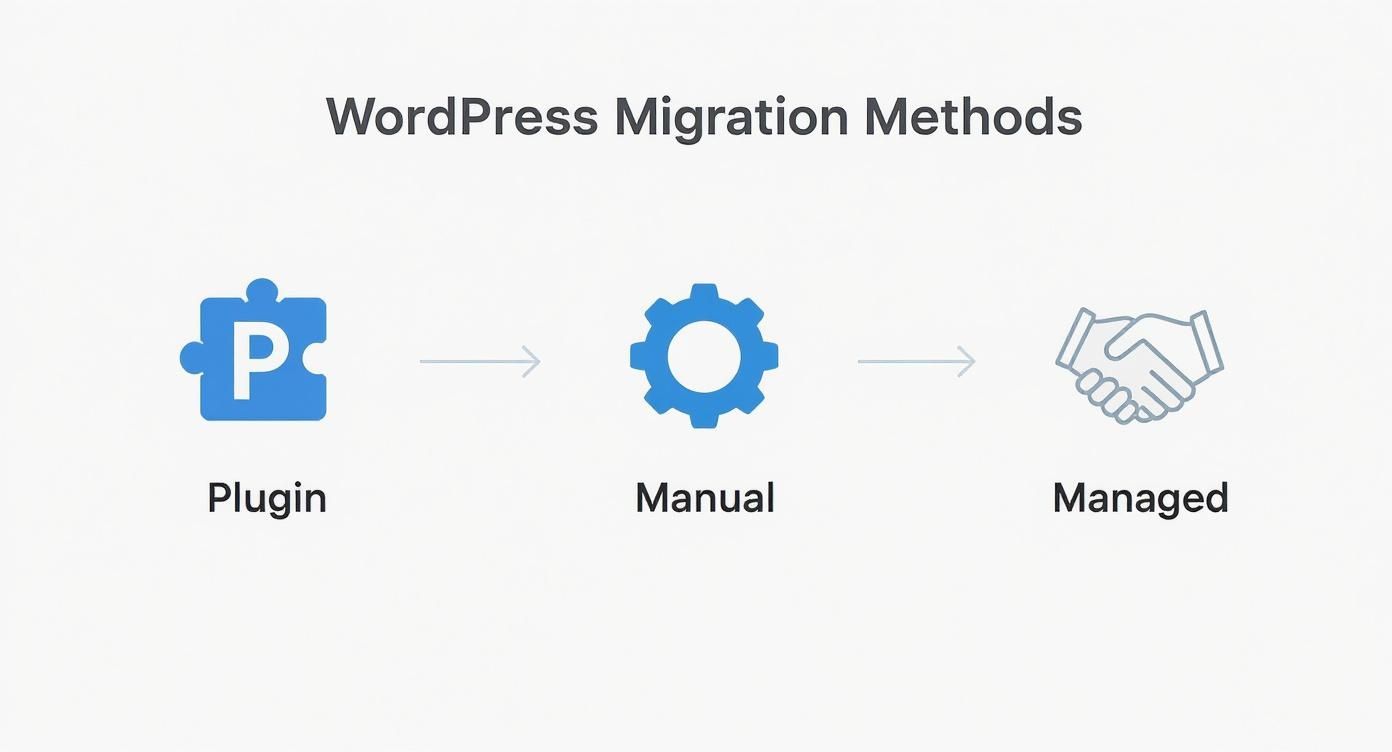
As you can see, the main difference comes down to your level of involvement. A plugin automates the heavy lifting, while a managed transfer is completely hands-off. Let's dig into the nitty-gritty of the two methods you'll be handling yourself.
The Plugin-Powered Transfer
If you chose a plugin like All-in-One WP Migration, you’re in for a pretty smooth ride. The process is designed to be as simple as possible.
First, you'll need to install and activate the plugin on your original site (the one you're moving). Once it's active, find its export function in the WordPress dashboard.
The plugin works its magic by bundling your entire site—themes, plugins, uploads, and the all-important database—into a single, neat .wpress file. Be patient here; this file can get quite large depending on the size of your site. When it's finished, download that file to your computer.
Next, you’ll head over to your new hosting server and set up a completely fresh, empty WordPress installation. Install the exact same migration plugin there. This time, you'll use the import function to upload the .wpress file you just saved. The plugin takes over from here, unpacking everything and, most importantly, running a comprehensive search-and-replace on the database to update all your site's URLs. This automated step is a lifesaver, preventing a mountain of broken links and images later on.
The Deep Dive: Manual Migration
Going the manual route gives you total control, but it also means you're responsible for every detail. The process breaks down into two core parts: moving the files and moving the database.
Moving Files with FTP
Your main tool here will be an FTP client like FileZilla.
- Connect to your old server's FTP.
- Find your site's root directory, which is usually a folder named
public_html. - Download everything inside that folder to a specific location on your computer. This can take a while, so grab a coffee.
- Once the download is complete, log in to your new server via FTP and upload all those files into the new site's root directory.
Migrating the Database with phpMyAdmin
Now for the brains of the operation.
- Log into your old host's control panel, open phpMyAdmin, and select your WordPress database.
- Click the "Export" tab. The "Quick" method and "SQL" format are usually all you need. This will download a
.sqlfile, which is a complete snapshot of your database. - Over on your new host, create a new, empty database. You'll also need to create a new database user and give it full permissions for that database. Write down the database name, username, and password—you'll need them in a minute.
- Open the new database in phpMyAdmin, find the "Import" tab, and upload the
.sqlfile you just exported.
Your files and data are now on the new server, but they aren't talking to each other yet.
Tying It All Together and Fixing URLs
For a manual migration, there’s one final, crucial configuration step. You need to edit the wp-config.php file on your new server. Open it up and find these lines, updating them with your new database credentials:
DB_NAMEDB_USERDB_PASSWORD
This little edit tells your WordPress installation how to connect to its new database. If you miss this, you’ll be greeted with the infamous "Error Establishing a Database Connection" message.
Finally, and this is non-negotiable, you have to update all the URLs in the database. Every internal link, every image source—they all still point to your old domain. Trying to do a simple find-and-replace on the .sql file is a recipe for disaster, as it can break serialized data arrays used by many themes and plugins.
The gold standard for this task is to use a script like Interconnect/it's Search Replace DB. You upload this script to your new server, access it via your browser, and it will safely and thoroughly replace every instance of your old URL with the new one. This is the key to preventing a site full of broken links and missing images.
No matter which path you took, a successful transfer comes down to careful work. For those managing multiple sites, it's worth checking out a directory of specialized tools for WordPress that can make ongoing management much easier. With the technical transfer complete, it’s time to move on to rigorous testing.
You've wrestled the files and database to their new home, but don't pop the champagne just yet. The job isn't done. This last leg of the journey is all about meticulous verification—catching the little things that can go wrong before your visitors do.
Too many people skip these final checks, and it often comes back to haunt them with broken links, missing images, and a tanking SEO score. Let's walk through a professional's post-migration checklist to make sure your site is not just moved, but truly settled in and ready for business.
Kicking the Tires: Your Initial Site Review
Before flipping the switch on your DNS, you need a private look at the new setup. Your web host should provide a way to do this, either through a temporary URL or by having you modify your computer’s local hosts file. This clever trick lets you browse the site on its new server while the rest of the world still sees the old one.
First, do a simple "walk-around." Using the preview method, click through the most important parts of your site from a visitor's perspective:
- Homepage: Is everything there? Do the sliders slide and the images appear?
- Core Pages: Check your About, Services, and especially your Contact page. Make sure the form looks right.
- Blog Posts: Open several articles. Are the images loading? Do embedded videos play?
Once the front end gets a thumbs-up, it's time to check the engine room. Log into your WordPress admin dashboard. If you can get in with your old credentials, that’s a great first sign. Poke around a bit. Try to create a draft post or upload a test image to the Media Library. A responsive and fully functional backend tells you the database connection is solid.
This isn't just busywork. Moving a WordPress site is complex. With its tangle of files, plugins, and database tables, even a minor hiccup during the transfer can cause chaos. And since WordPress powers over 43% of the entire internet, getting these migrations right is something millions of us have to deal with. For more perspective on just how dominant WordPress is, check out the stats over at ScalaHosting.
Solving the Inevitable Post-Migration Puzzles
No matter how carefully you plan, you're likely to encounter a bump or two. It happens to everyone. The good news is that most common migration problems have well-known, straightforward fixes.
The Dreaded "Error Establishing a Database Connection"
This is, without a doubt, the most common error you'll see. It’s WordPress screaming that it can't talk to its database. Nine times out of ten, the problem lies within your wp-config.php file.
Open that file and carefully check these four lines. A single typo is all it takes.
DB_NAME(the name of your new database)DB_USER(the new database username)DB_PASSWORD(that user's password)DB_HOST(usually 'localhost', but your new host will confirm this)
A Sea of "404 Not Found" Errors
Okay, so your homepage loads perfectly, but every other link you click leads to a 404 error. This is a classic permalink issue. Your .htaccess file, the little traffic cop that directs your site's URLs, either didn't transfer correctly or needs to be rebuilt for the new server environment.
Thankfully, the fix is ridiculously simple:
- Log into your WordPress dashboard and navigate to Settings > Permalinks.
- You don't need to change a thing.
- Just scroll down and click the Save Changes button.
This single click forces WordPress to generate a fresh .htaccess file with the correct configuration for your new host.
Pesky "Mixed Content" Warnings
You’ve moved to a secure host with an SSL certificate (HTTPS), but your browser is showing a security warning. This happens when your pages are still trying to load some assets—like images, CSS, or scripts—over the old, insecure HTTP protocol.
The quickest way to fix this is with a plugin like Better Search Replace. It lets you perform a deep search across your entire database. You’ll run a search for http://yourdomain.com and replace every instance with https://yourdomain.com. This ensures all your site’s resources are called securely over HTTPS. With a fully functional and secure site, you're in the perfect spot to start working on how to increase your blog traffic.
By working through these checks and fixes, you're doing more than just putting out fires. You're ensuring the site you just moved is stable, secure, and ready to perform even better than it did before.
Your WordPress Migration Questions, Answered
Even with the best guide, moving a WordPress site can bring up some specific questions. I've been through this process more times than I can count, and the same handful of concerns always seem to surface. Let's tackle them head-on so you can move forward without any lingering doubts.
Think of this as the part of the conversation where we clear up the "what ifs" and "how abouts."
How Long Does a WordPress Migration Take?
This is the classic "how long is a piece of string?" question. The truth is, it varies wildly. I’ve seen small blogs move in under an hour, while massive e-commerce sites can easily take up a full business day.
A few key variables will determine your timeline:
- The Sheer Size of Your Site: A personal blog sitting at a few hundred megabytes might be done in 30-60 minutes. An online store with gigs of high-res product photos and customer data? You could be looking at 4-6 hours, maybe more.
- Your Chosen Method: Plugins are almost always the fastest route for most people. Going manual adds significant time for downloading, uploading, and tinkering with database files. If you let your new host handle it, you're on their schedule.
- Connection Speeds: Don't forget this one. The transfer speed is only as fast as the weakest link between your old host, your new host, and your own internet connection.
My best advice? Always schedule the migration for when your site is quietest. A late night or a weekend is perfect for minimizing any potential disruption to your visitors.
Will Migrating My WordPress Site Hurt My SEO?
If you do it right, no. In fact, it can be a net positive. Moving to a faster, more stable server can actually give your search rankings a nice little boost over time. The key is avoiding the common, clumsy mistakes that can absolutely tank your SEO.
The biggest enemy here is downtime. If your site is offline for too long, search engines will notice, and not in a good way.
If you’re also changing your domain name as part of the move, setting up proper 301 redirects is absolutely non-negotiable. This tells Google that old-page.com has permanently moved to new-page.com, passing along its hard-earned authority. Once you're live, immediately submit your new sitemap to Google Search Console and keep a close eye on crawl errors.
A well-planned migration is either a non-event for SEO or a positive one. The problems almost always stem from poor planning, extended downtime, or botching the redirects.
What Is the Safest Way to Migrate a WordPress Site?
When we talk about "safety" in a migration, we're really talking about minimizing the risk of losing data or breaking something important. The safest method for you really depends on your comfort level with the technical side of things.
For anyone who isn't a developer, the hands-down safest route is using a managed migration service from a quality host like Kinsta or WP Engine. Their teams do this all day, every day. They've seen it all.
The next best thing is a trusted, premium plugin like Duplicator Pro or the paid version of All-in-One WP Migration. These tools are built to automate the tricky parts, which dramatically cuts down on the chances of human error.
A manual migration gives you total control, but it's also where things are most likely to go wrong for a beginner. No matter which path you choose, your real safety net is having a complete, verified backup of your entire site stored somewhere safe before you even think about starting.
Do I Need to Install WordPress on the New Host Before Migrating?
This is a great question, and the answer depends entirely on the tool you're using.
With a plugin like All-in-One WP Migration, the answer is yes. You start by setting up a completely fresh, empty WordPress installation on the new server. Then, you install the plugin there and use its import feature to bring your backup file in.
But for a plugin like Duplicator or a manual migration, the answer is no. These methods bundle everything—your content, themes, plugins, and the WordPress core files—into one package. They are designed to create the entire WordPress installation from scratch on the new server. Trying to install them on top of an existing WordPress site is unnecessary and will likely cause a mess.