How to Find the CMS of a Website A Practical Guide
Discover how to find the CMS of a website with our practical guide. Learn to use online detectors, browser extensions, and manual code checks like a pro.


Trying to figure out what Content Management System (CMS) a website is built on? The quickest way is often with a free online tool. Pop the URL into a service like WhatCMS or BuiltWith, and their detectors will scan the site's code and server details to name the platform powering it.
Why Bother Identifying a Website's CMS?
Before we get into the nitty-gritty of how to find a site’s CMS, it’s worth understanding why this is such a valuable piece of information. This isn't just a technical party trick; it's a genuine piece of competitive intelligence that can give you a real edge. For anyone working in the digital space, knowing the operational backbone of a website is a game-changer.
Knowing what’s under the hood opens up a ton of strategic possibilities, depending on your role. It’s about seeing the choices other businesses in your space have made and using that information to inform your own strategy.
The CMS as a Digital Foundation
Think of the CMS as the engine of a website. It controls everything from content and structure to functionality and performance. It determines how easily a marketing team can publish a blog post, what e-commerce features are available, and how well the site holds up under traffic.
It’s no surprise that so much of the web runs on these platforms. As of 2025, an estimated 64% of all websites are built using a CMS. Small and medium-sized businesses, in particular, rely on them to manage their online presence without needing a massive in-house technical team.
The ability to quickly find the CMS of a website is like having a backstage pass to your competitor's digital strategy. It tells you what tools they rely on, what limitations they might face, and where their technical priorities lie.
Identifying a CMS provides a window into the decisions, capabilities, and even the potential struggles of another website. This insight is incredibly useful across various professional contexts.
Here's a breakdown of what you can gain by knowing a site's CMS:
Key Reasons to Identify a Website's CMS
| Motivation | Who Benefits | Practical Application |
|---|---|---|
| Competitive Analysis | Marketers & Strategists | See if top competitors use a nimble headless CMS or a traditional platform like WordPress. This hints at their content strategy and technical agility. |
| Technology Scoping | Developers & Agencies | Evaluate the tech stack of a site you admire. Knowing they use Shopify, for example, helps you budget and plan for a similar e-commerce project. |
| Platform Evaluation | Business Owners | When planning a redesign, see what successful businesses in your niche are using. This can shorten your research time and validate platform choices. |
| Sales & Outreach | Sales Reps & Marketers | Identify sites on outdated or limited platforms. This creates an opportunity to pitch them on migration services or compatible marketing tools. |
| Security Assessment | SEOs & Security Analysts | Knowing the CMS and version can help you assess potential vulnerabilities when you perform a comprehensive SEO audit. |
Ultimately, whether you're researching different open-source CMS platforms for a brand-new project or just sizing up the competition, identifying the CMS is a crucial first step. It gives you a baseline for deeper, more informed strategic planning.
Using Online Detectors for Instant CMS Identification
When you need to figure out what CMS a website is running on, the fastest route is almost always an online detector. These tools are purpose-built to scan a site’s code and digital footprint, looking for the tell-tale signs of a specific platform. Think of them as a digital detective that can give you an answer in seconds.
I often start with tools like WhatCMS or BuiltWith because they're reliable and thorough. They don’t just stop at identifying the CMS; they usually pull back the curtain on the entire tech stack—analytics tools, advertising networks, CDNs, and JavaScript libraries. This gives you a much richer understanding of how a site is built and operates.
How to Use an Online Detector
It really couldn't be simpler. You just copy the website's URL, paste it into the search bar on the detector's site, and hit go. The tool’s engine then gets to work, analyzing the site’s technical signatures and comparing them against a massive database of known platforms.
Take a look at what happens when you run a site through BuiltWith.
As you can see, the results go way beyond just the CMS. It has pinpointed the web server, analytics scripts, and all sorts of other integrated tech. This kind of data is incredibly useful for competitive analysis or technical research.
Comparing Top Online CMS Detection Tools
Not all online detectors are created equal. Some are lightning-fast but basic, while others offer a deep dive into a site's full technology profile. Here’s a quick comparison to help you choose the right tool for the job.
| Tool Name | Key Features | Best For |
|---|---|---|
| WhatCMS | Focuses specifically on identifying the CMS, theme, and key plugins. Very fast and straightforward. | Quick, no-frills CMS identification when that's all you need. |
| BuiltWith | Provides a comprehensive technology profile, including CMS, analytics, frameworks, and more. | Deep technical analysis and understanding a site’s entire digital ecosystem. |
| W3Techs | Offers detailed market share statistics alongside technology identification. | Researchers and marketers looking for broader trends in web technology usage. |
Each tool has its place. For a quick check, WhatCMS is perfect. For a more exhaustive breakdown, BuiltWith is the industry standard.
Understanding the Results and Limitations
While these tools are impressively accurate for common systems like WordPress, Shopify, or Joomla, they aren't foolproof. Custom-built platforms, heavily modified open-source systems, or sites with aggressive security measures can sometimes throw them off.
If you get a "no CMS detected" result, don't automatically assume there isn't one. It might just mean the site is built on a less common platform or is obscuring its digital fingerprints.
Key Takeaway: Online detectors are your best first move for speed and convenience, especially with popular platforms. But if they come up empty, it’s a clear signal that you need to roll up your sleeves and try a more hands-on approach.
This is a good reminder of just how diverse the web is. Reading through different website builder reviews can give you a feel for the sheer variety of platforms out there, many of which may not be in every detector's database. When an automated tool hits a wall, it’s simply time to dig a little deeper yourself.
Using Browser Extensions for Quick, On-the-Fly Analysis
If you find yourself needing to check a site’s CMS more than just occasionally, browser extensions are a lifesaver. Instead of constantly opening a new tab for an online tool, you get the full technology stack with a single click, right from your browser toolbar. It's an incredibly efficient way to handle routine technical checks.
For this kind of work, tools like Wappalyzer and SimilarTech are pretty much the industry standard. They’re available for both Chrome and Firefox, and getting them set up is as simple as finding them in the browser's web store and clicking "add." Once it's installed, you’ll see a new icon in your toolbar. Just head to any website, click it, and you'll get a detailed profile of the tech behind the scenes.
More Than Just a CMS Detector
The real power of these extensions is that they don’t just stop at identifying the CMS. They give you a much bigger picture of the site's entire digital foundation. You can see everything from the analytics tools they're using to the ad networks they've plugged in, right down to specific JavaScript libraries and even what kind of web server they're on. For developers, marketers, or even sales teams, this level of context is gold.
Take a look at this Wappalyzer report—it tells you a lot more than just the content management system.

As you can see, the extension neatly categorizes all the different technologies, giving you a clean, easy-to-read overview of the site’s architecture at a glance.
This kind of detailed breakdown is particularly useful when you consider how dominant some platforms are. WordPress, for example, is still the giant in the room, powering about 43.5% of all websites as of May 2025 and commanding a 61.2% market share among sites with an identifiable CMS. You're going to run into it a lot.
My Go-To Tip: Pin your favorite tech-detection extension to your browser's toolbar. It seems like a small thing, but having that one-click access saves you from constantly digging through menus and really smooths out your workflow.
These tools are perfect for quickly confirming if a site runs on a major platform like WordPress, Shopify, or Drupal. And if you’re diving deeper into the WordPress ecosystem specifically, you can also check out our collection of WordPress developer tools to see which plugins and services are commonly paired with it. By making these extensions a part of your daily browsing, every site you visit becomes an instant learning opportunity.
What To Do When The Tools Don't Work: A Look Under The Hood
Online detectors are great, but they're not foolproof. So what happens when they come up blank? That’s when it’s time to roll up your sleeves and peek directly at the website's source code. This is my go-to move for sites that use custom-built systems, less common platforms, or even those that intentionally try to hide what they're built on.
This might sound intimidating, but you really don't need to be a developer to pull it off. Just right-click on the webpage and hit "View Page Source" (the wording might vary slightly depending on your browser). A new tab will pop up, filled with the site's HTML code. This is where the real clues are hiding.
Finding the Digital Fingerprints in the Code
With the source code in front of you, the quickest way to find anything is to use the find function (Ctrl+F on Windows, Cmd+F on Mac). You're essentially looking for text "footprints" that are unique to specific platforms.
Here are a few of the most common breadcrumbs I look for:
- WordPress: A quick search for
wp-contentorwp-includesalmost always hits the mark. These directory names are fundamental to how WordPress works. - Shopify: I immediately look for
.myshopify.comin the code or the termShopify.theme. These are dead giveaways that you're looking at a Shopify store. - Joomla: The term
Joomla!is often right at the top of the code, sitting inside a<meta name="generator">tag. It's often that easy. - Drupal: Just like Joomla, a search for
Drupalwill frequently point you to the generator meta tag. - Wix: Searching for
wix.comwithin script URLs or spotting element IDs likewix-viewer-modelconfirms it’s a Wix site.
Knowing these little tells is especially useful when analyzing e-commerce sites, which now account for over 28% of the top one million websites. Platforms like Shopify, holding a 6.7% slice of the total CMS market, leave behind very clear, consistent clues in their code.
Pro Tip: Pay close attention to the file paths for CSS stylesheets and JavaScript files. The folder structure itself can tell you everything. For instance, if you see a path like
/sites/default/files/, you can be almost certain you’re dealing with a Drupal site.
Going Deeper Than the Page Source
Sometimes the HTML itself won't give you the answer. This is often the case with sites built using a static site CMS, which don't leave the same kind of obvious footprints.
When this happens, you need to open your browser's Developer Tools (F12 is the usual shortcut). From there, click on the "Network" tab. After you reload the page, you can inspect the HTTP headers for the page request. A header like X-Powered-By can sometimes explicitly name the CMS or server technology.
Learning this manual approach doesn't just help you solve the trickiest cases—it genuinely deepens your understanding of how the web works.
A Practical Workflow: How to Find a Website's CMS, From Easiest to Hardest
Knowing how to find a website's CMS is one thing; knowing the most efficient way to do it is another. You don't want to waste time digging through source code if a simple online tool can give you the answer in two seconds. The key is to work smart, not hard.
I always recommend a tiered approach. Think of it like a detective's playbook: you start with the simplest, fastest methods and only escalate to more complex techniques if you hit a dead end. This saves you a ton of time and effort.
Start with Speed: Online Tools and Browser Extensions
Your first port of call should always be a reliable online CMS detector. They're quick, free, and incredibly easy to use. Just paste in the URL, and if you get a clear result, you're done. Simple as that.
If the online tool can't figure it out, your next move is a browser extension like Wappalyzer. These tools are great because they analyze the site's tech stack directly from your browser, often picking up details that web-based scanners might miss.
From my experience, this simple two-step process solves the mystery for about 80% of websites in under a minute. The other 20% are the tricky ones that require a more hands-on approach.
This visual breaks down the decision-making process perfectly.
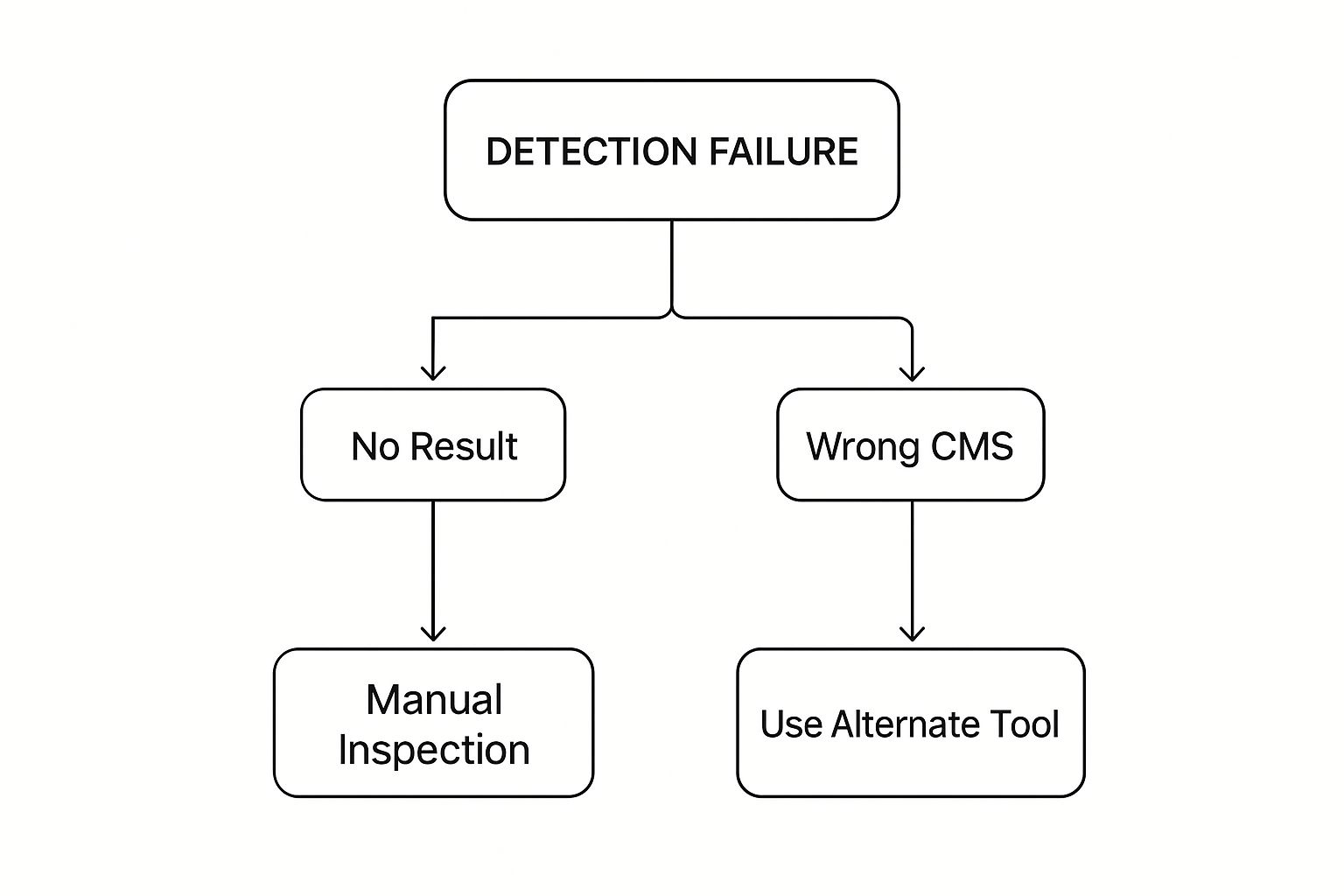
As you can see, if you get no result, it's time to roll up your sleeves and inspect the code manually. But if you get a result that just seems wrong, it's worth trying a second tool before you dive deeper.
What About Modern, Headless Architectures?
Sometimes, automated tools get stumped by modern web development practices. For example, if a detector only identifies a front-end framework like React or Vue.js, you might be dealing with a site built on a headless CMS.
With a headless setup, the back-end content management system is completely separate from the front-end presentation layer. This "decoupled" architecture can fool standard detection tools. You can see some great examples in this collection of headless CMS platforms. Uncovering these usually requires a bit of manual inspection, specifically by looking at the network API calls to see where the site is pulling its content from.
Common Questions and Tricky Scenarios in CMS Detection
Even with the best tools, sometimes you hit a wall trying to figure out what a site is built with. Let's walk through some of the common snags and tricky situations you might run into.
Can a Website Completely Hide Its CMS?
Yes, to an extent. Savvy developers often try to obscure their CMS for security reasons—a practice called "security through obscurity." They might remove the tell-tale generator meta tags, rename default login paths like /wp-admin, or use plugins that mask the typical footprints.
These steps can definitely trip up automated tools. However, they rarely fool a determined human. A careful look at the source code, specific CSS class names (post-123, anyone?), or the way scripts are loaded will almost always give the game away to a trained eye. It just takes a bit more digging.
What if No CMS Is Detected at All?
If you’ve tried a few online tools, a browser extension, and skimmed the code yourself with no luck, it’s not a dead end. It’s actually a clue. This result usually points to one of three things:
- A Custom-Built System: Large companies or those with very specific needs often build their own proprietary CMS from the ground up. These won't have the public fingerprints that tools look for.
- A Static Site or JS Framework: The site might be built with a static site generator like Hugo or a JavaScript framework like React or Vue. These don’t work like a traditional CMS, so the usual detection methods won't find one.
- Good Old-Fashioned HTML: It could simply be a hand-coded website, built from scratch without any CMS at all.
When this happens, your investigation simply shifts. Instead of looking for a CMS, you start looking for clues about the underlying framework or libraries in use.
Pro Tip: A "no CMS detected" result is still valuable information. It tells you the site is likely running on a custom solution, a modern framework, or is hand-coded. For a competitor analysis, that’s a significant insight into their tech stack and development approach.
How Reliable Are Online CMS Detectors?
For the most part, reputable online detection tools are perfectly safe. They just scan a site's public-facing code, the same way a search engine bot would. There’s no security risk involved.
When it comes to accuracy, they're fantastic at spotting the big players. For sites built on WordPress, Shopify, or Joomla, their detection rate is incredibly high because those platforms have very distinct, well-known digital signatures. Their reliability dips a bit when dealing with less common systems, heavily customized sites, or niche platforms. It's always a good idea to stick with well-known tools and cross-reference if you get an unusual result.
What About Headless CMS? Do They Show Up?
This is where things get interesting. Most of the time, the answer is no. A headless CMS separates the back-end (where content is managed) from the front-end (what you see in the browser).
An automated tool scanning the public website will only see the front-end tech—like Next.js or Nuxt. The back-end CMS, which could be something like Contentful or Strapi, remains hidden from view.
Detecting a headless CMS usually requires a more manual approach. You'll need to pop open your browser's developer tools and inspect the "Network" tab for API calls. Look for requests being made to a third-party service; that's often where you'll find the name of the headless CMS providing the content.